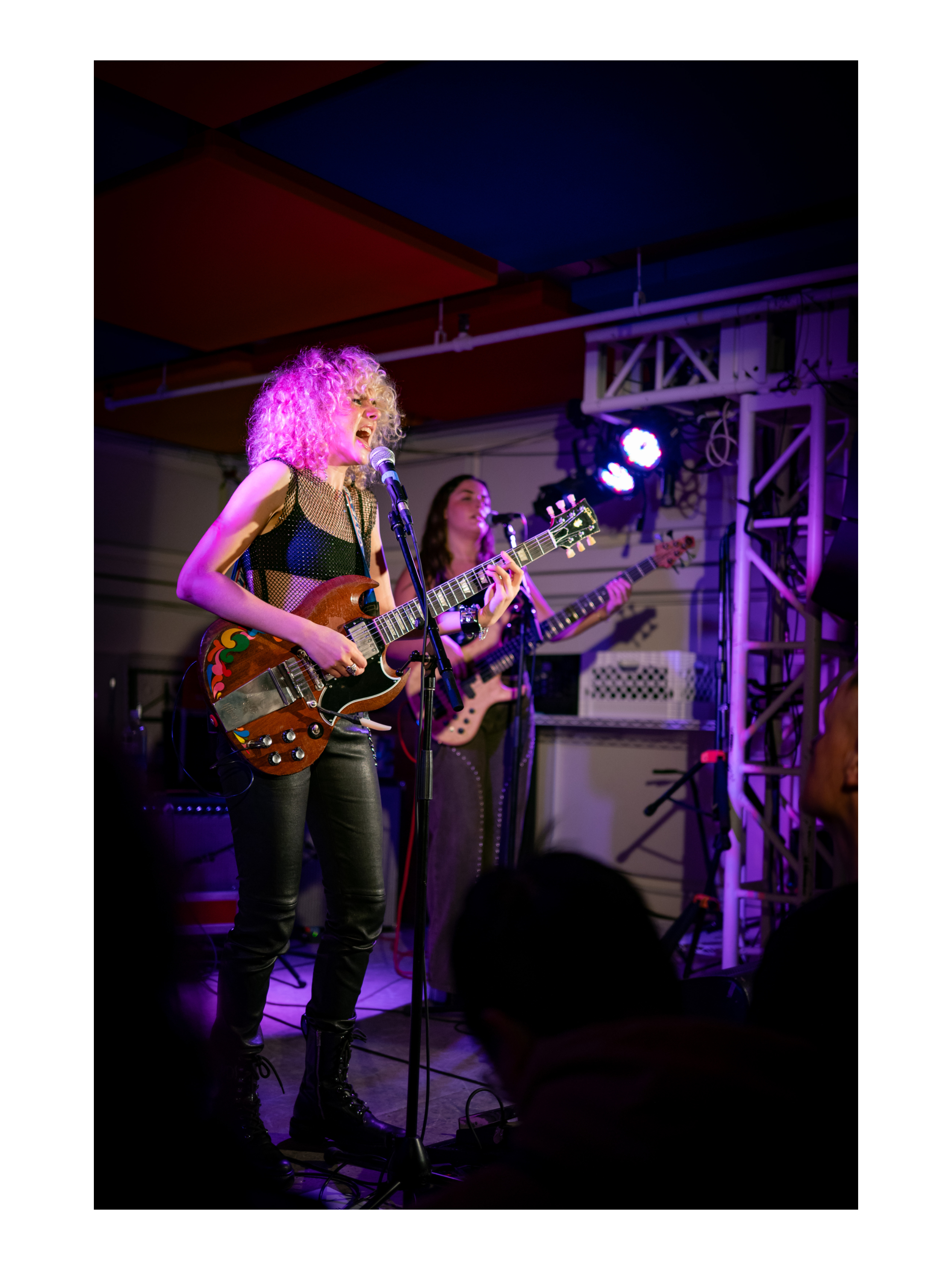
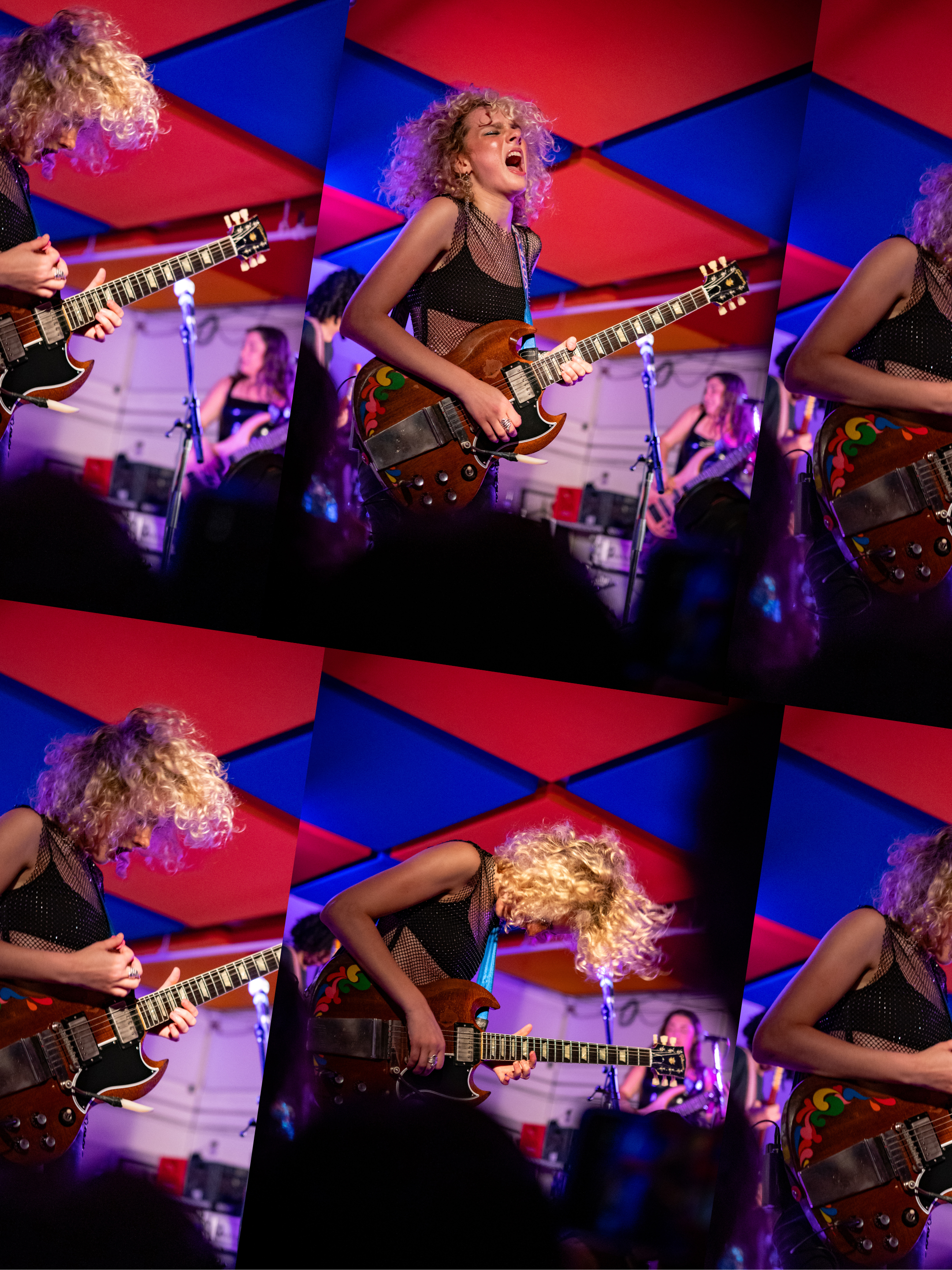
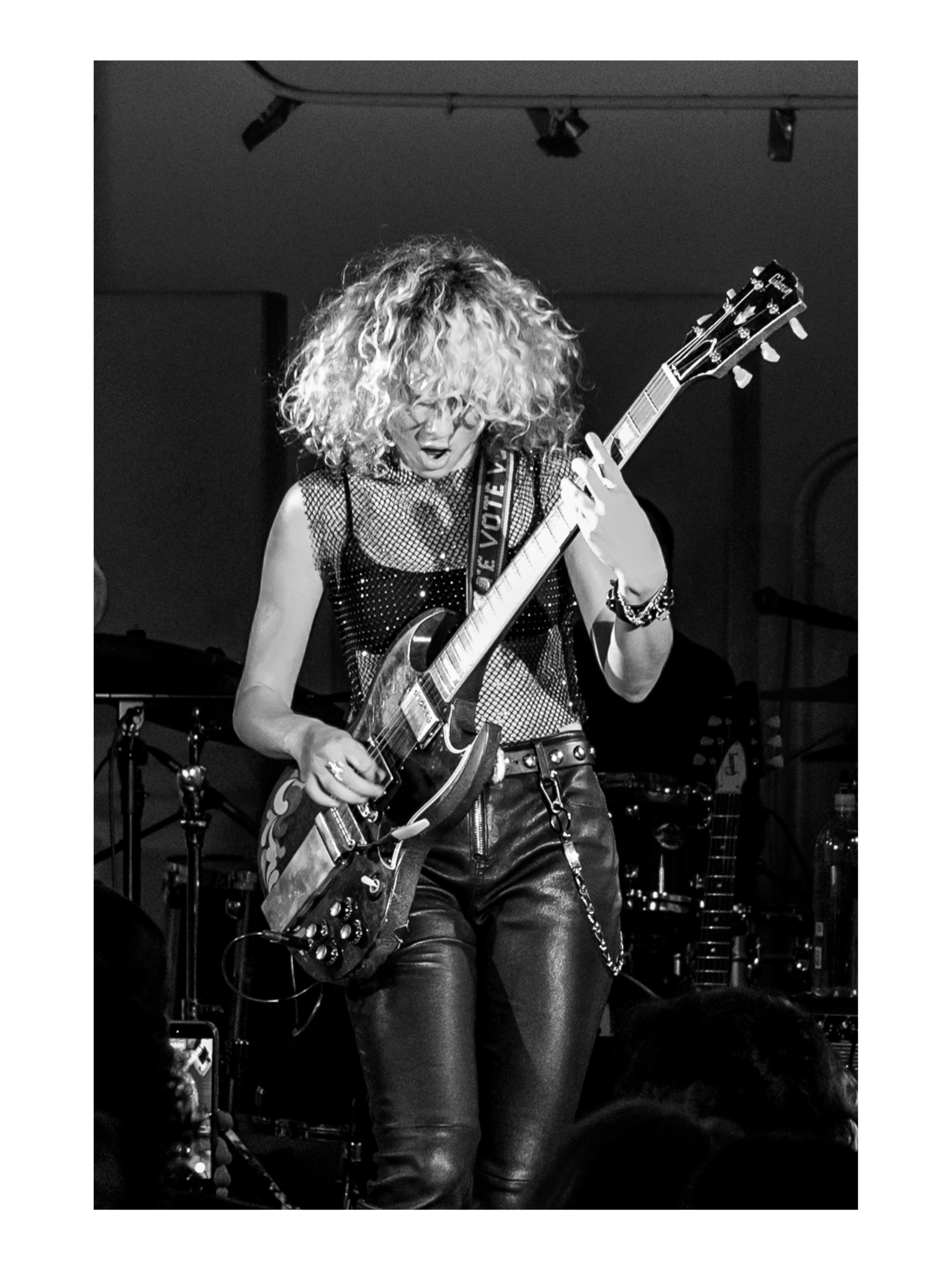
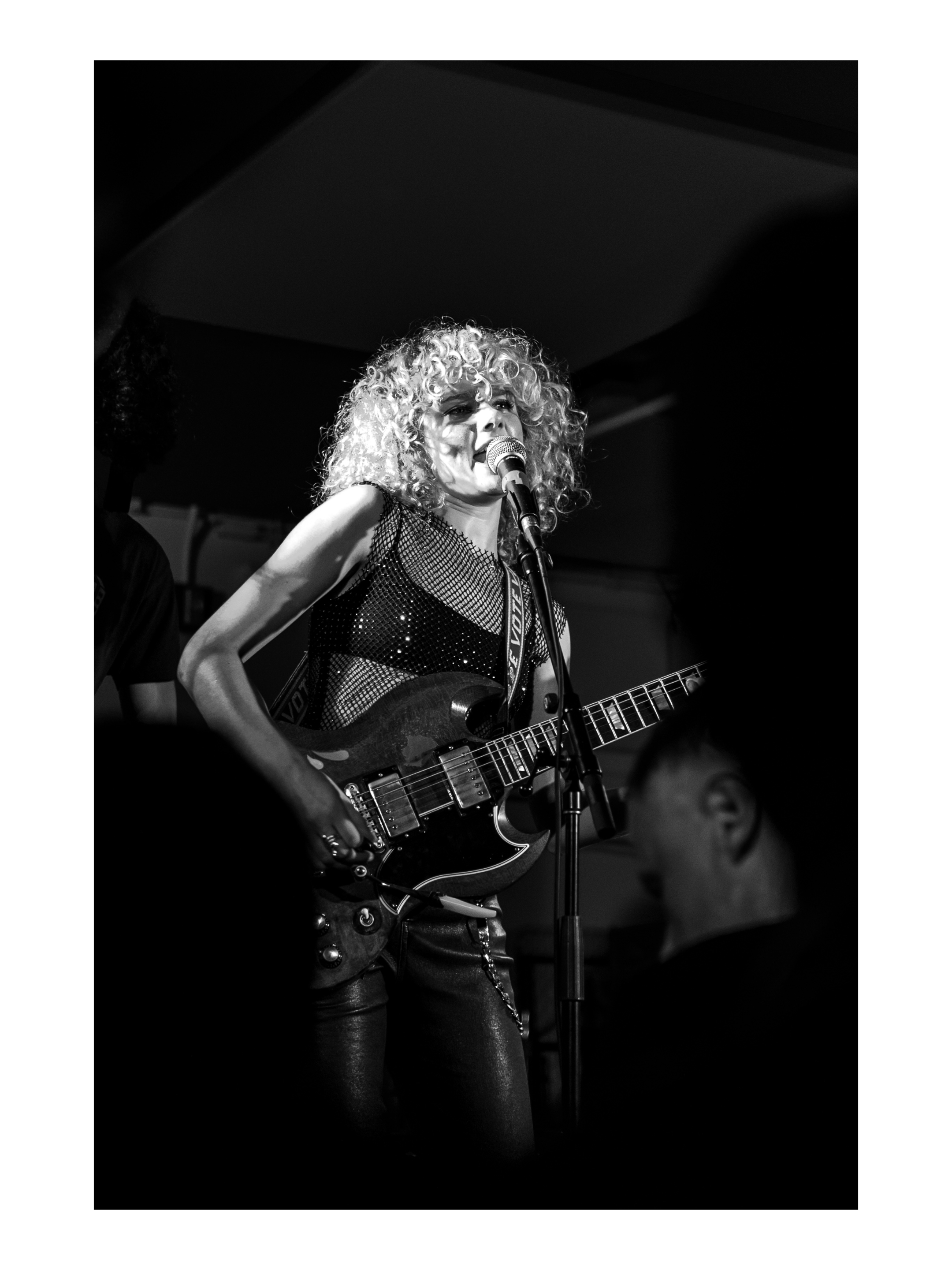
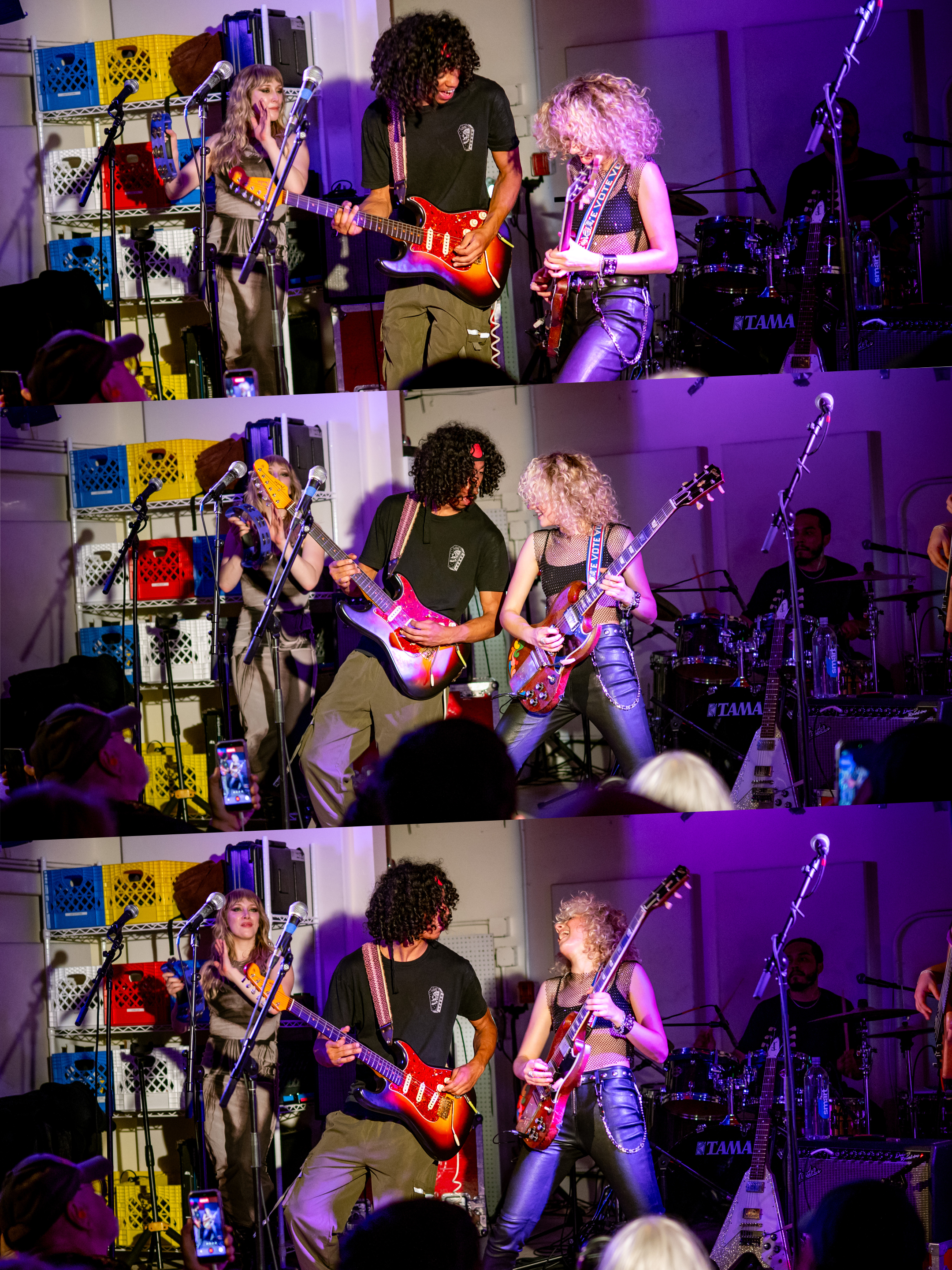
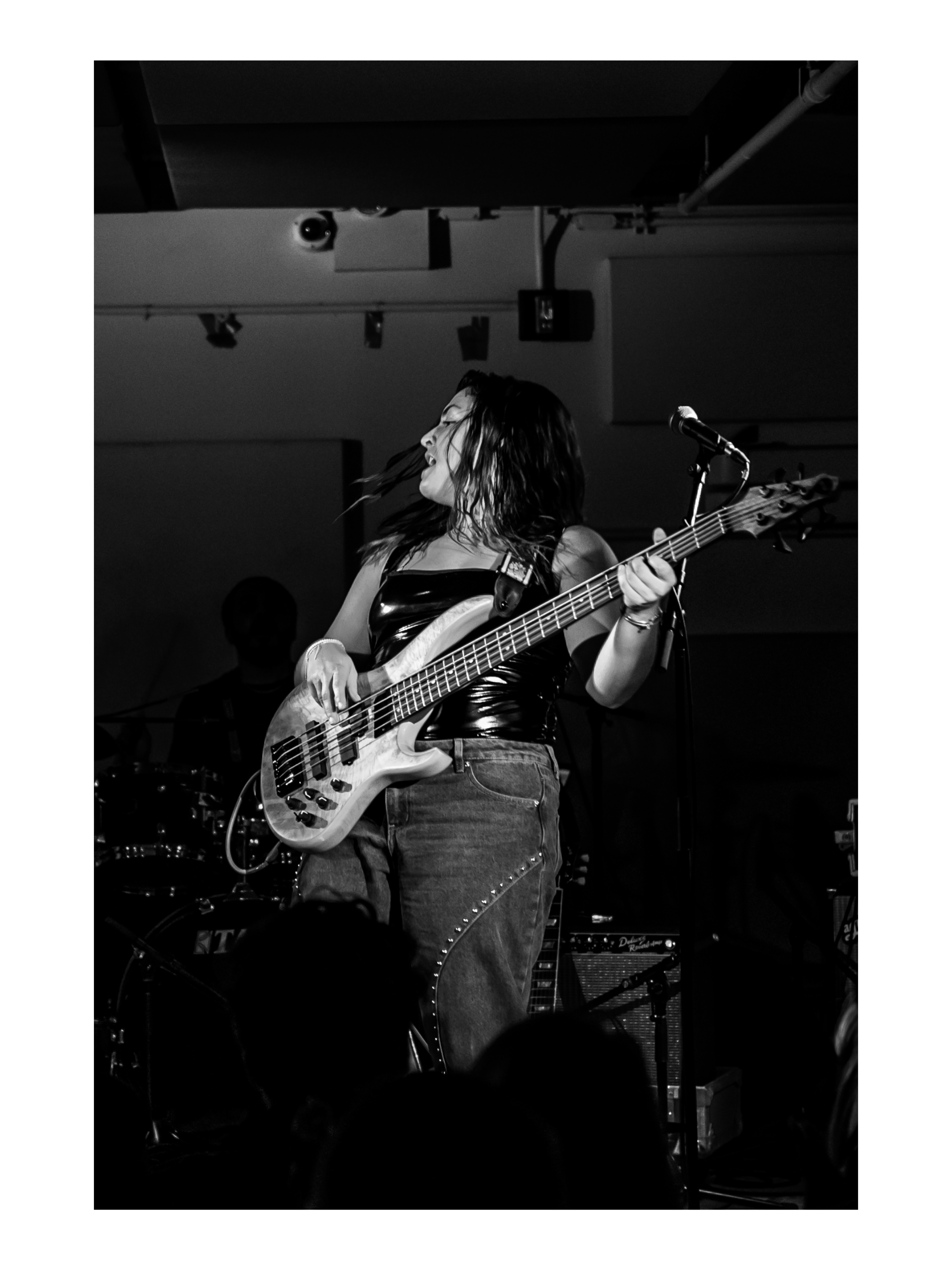
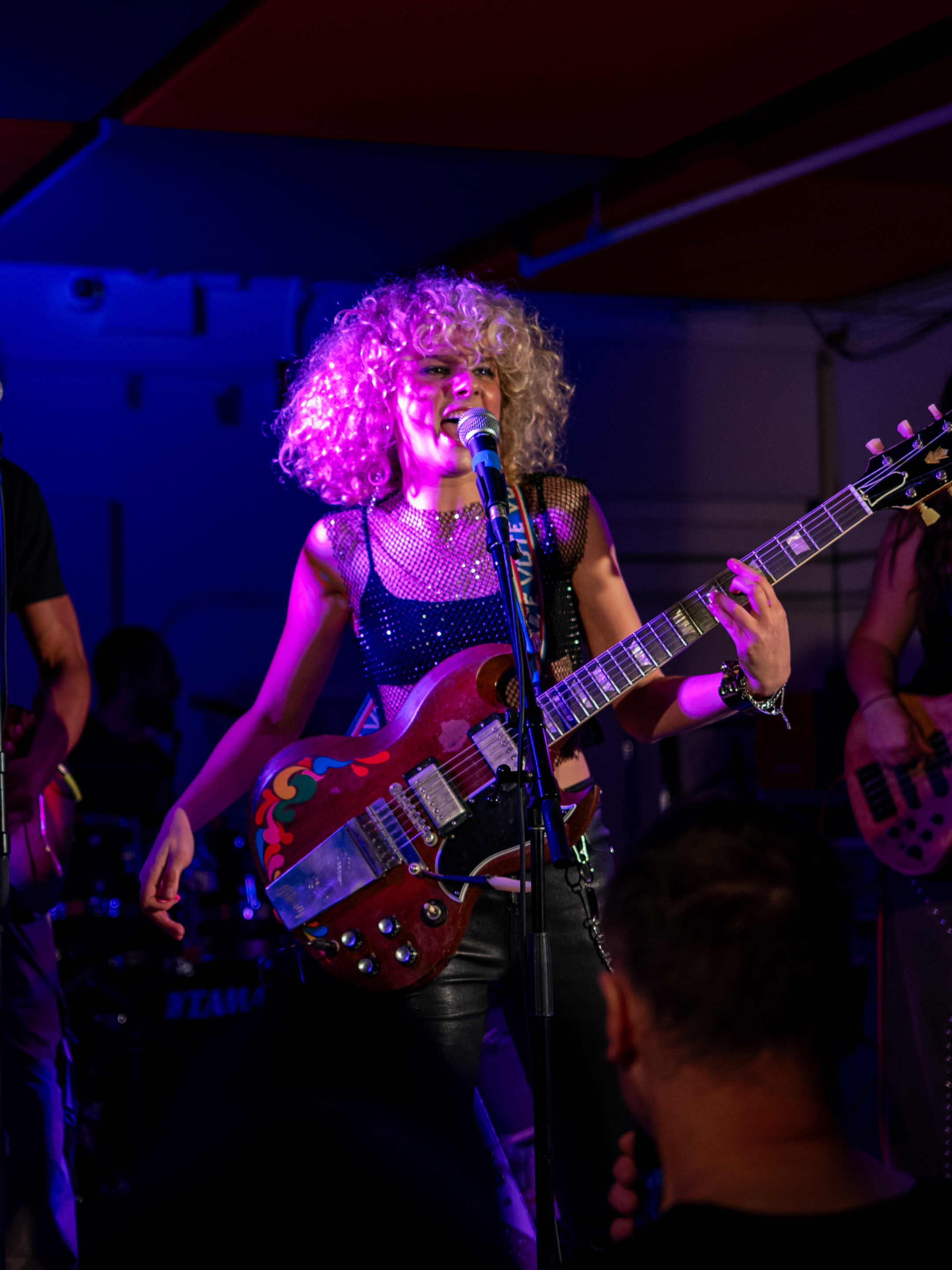
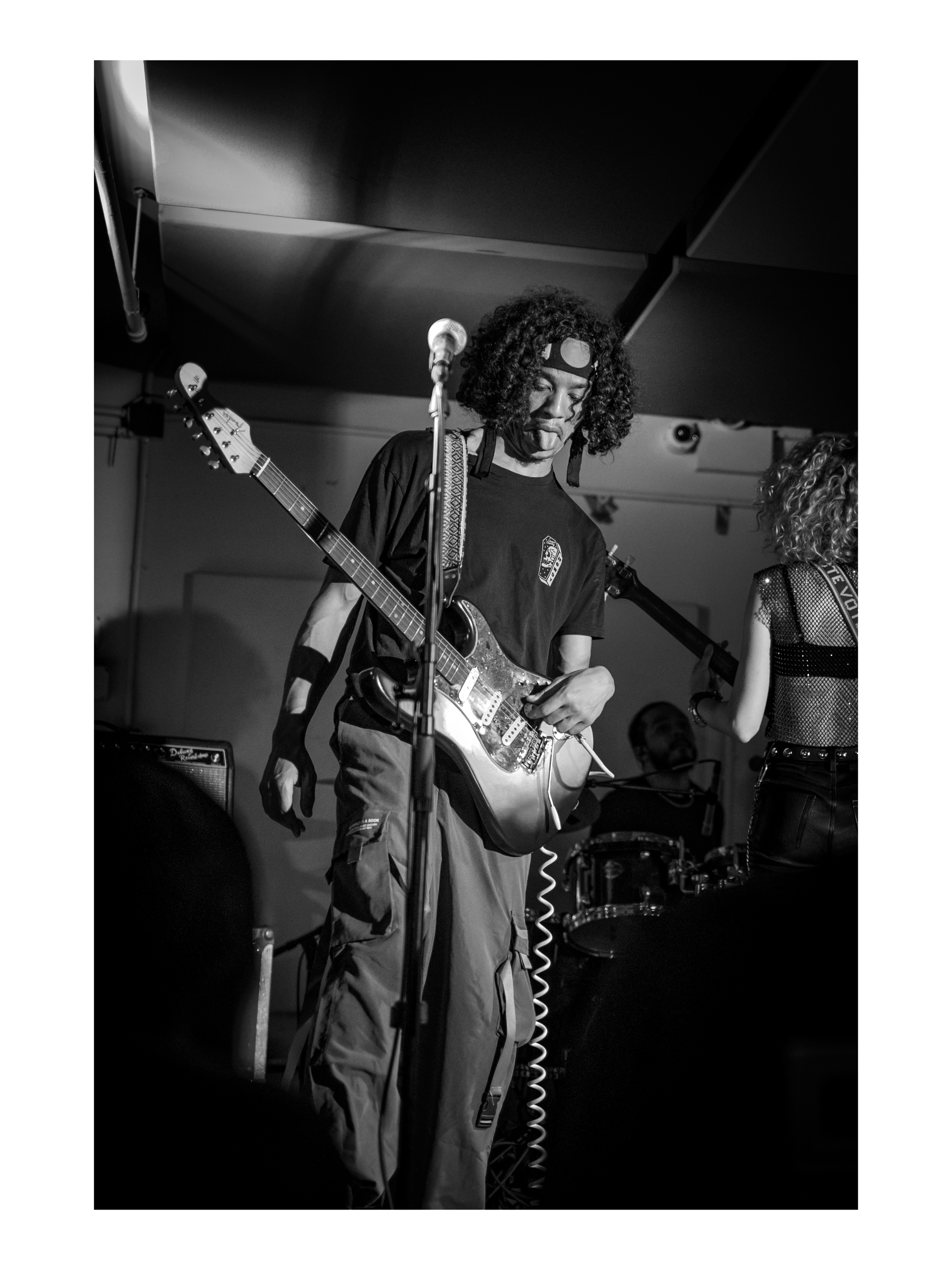
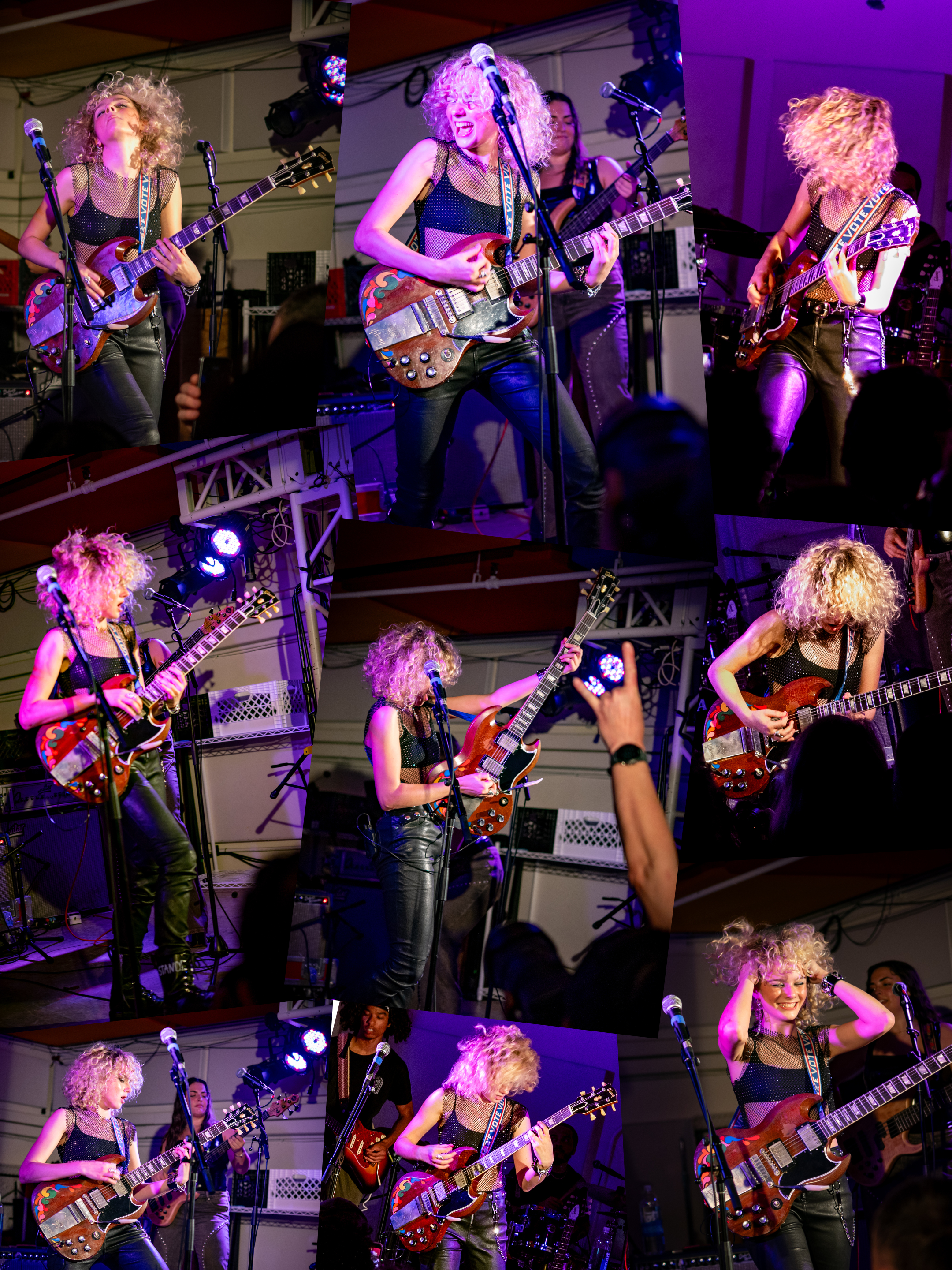
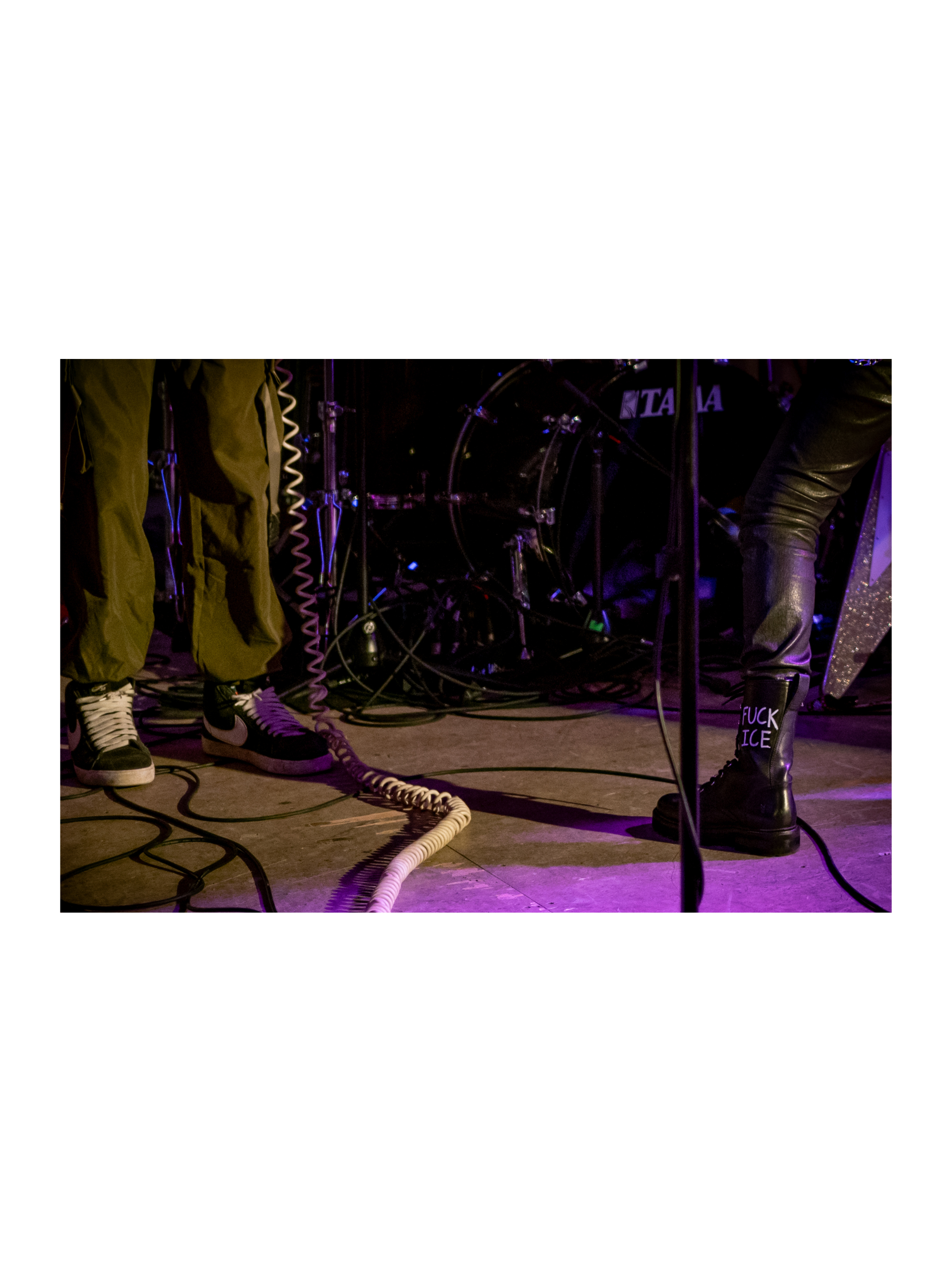
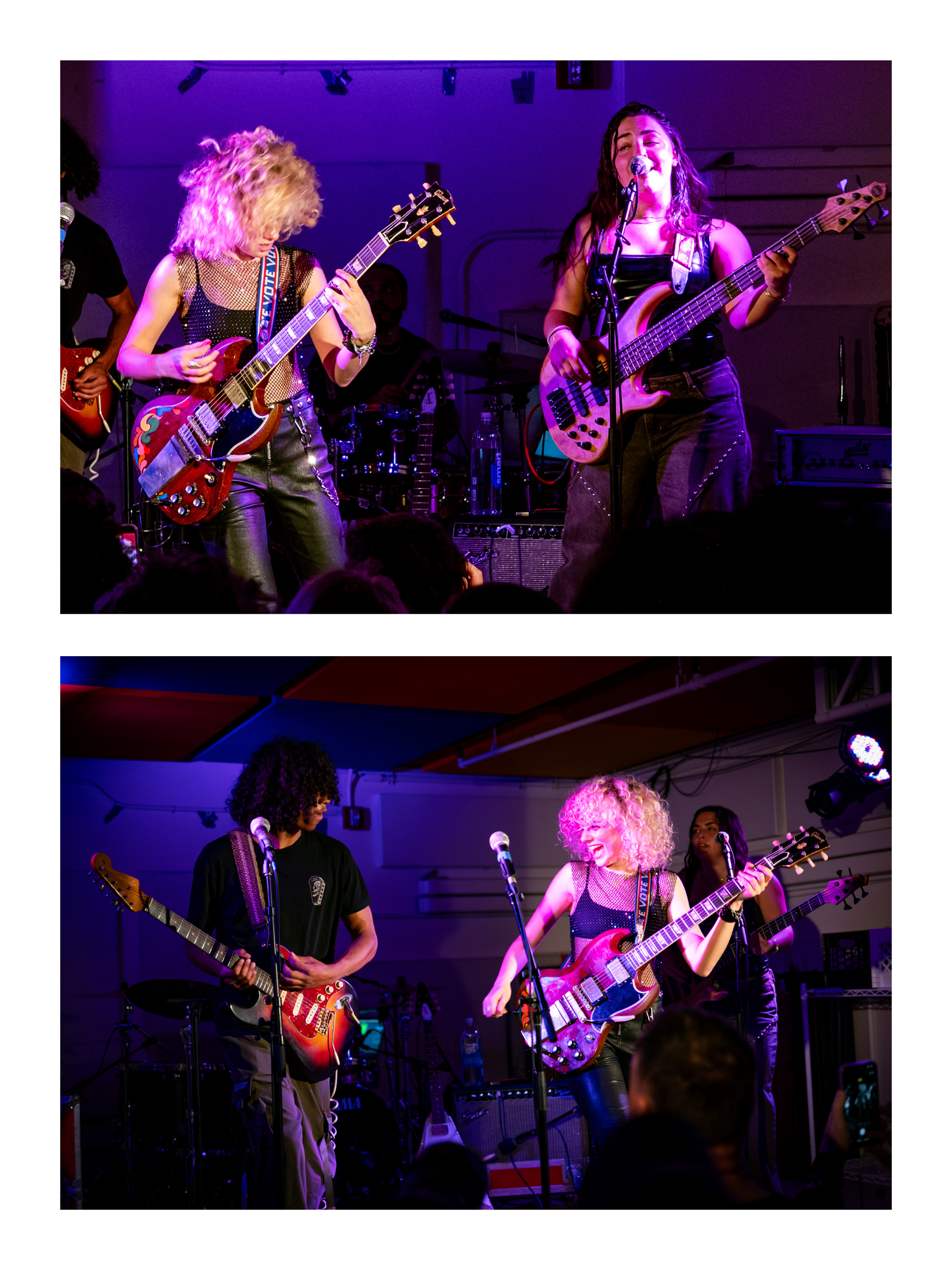
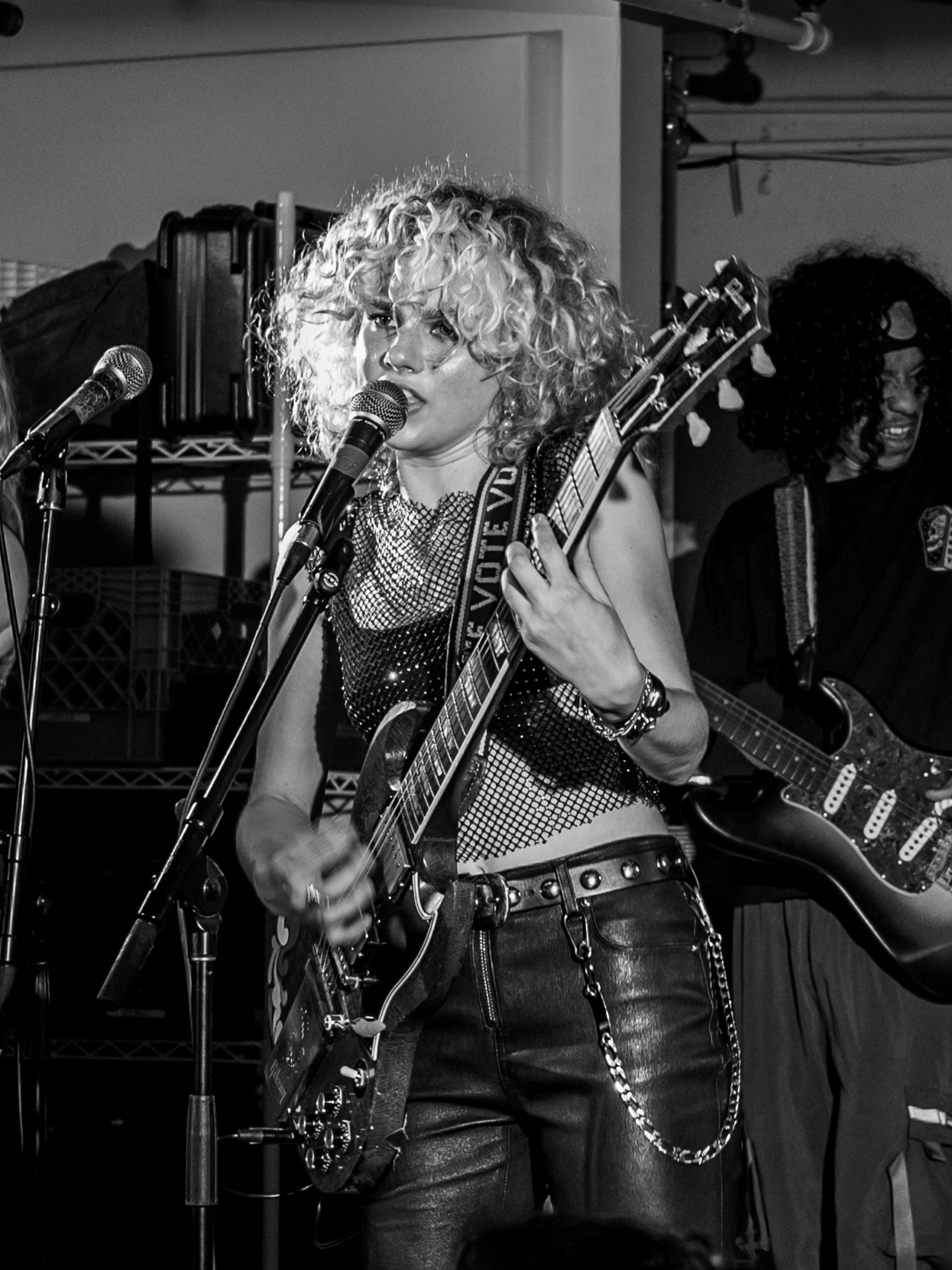
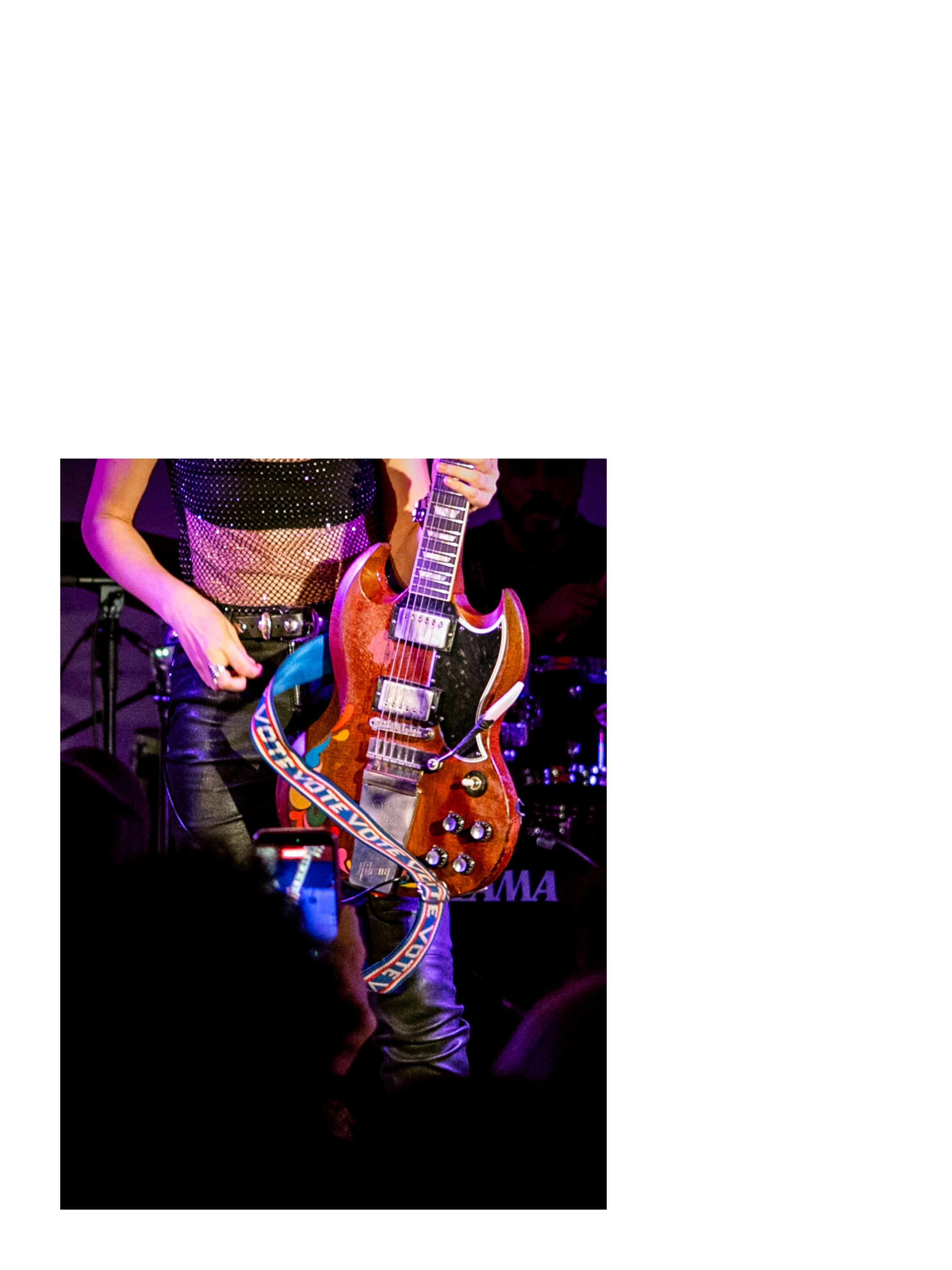
Grace Bowers at Night Club 101 on March 16th, 2026
Scroll for more →
Grace Bowers at Night Club 101 on March 16th, 2026
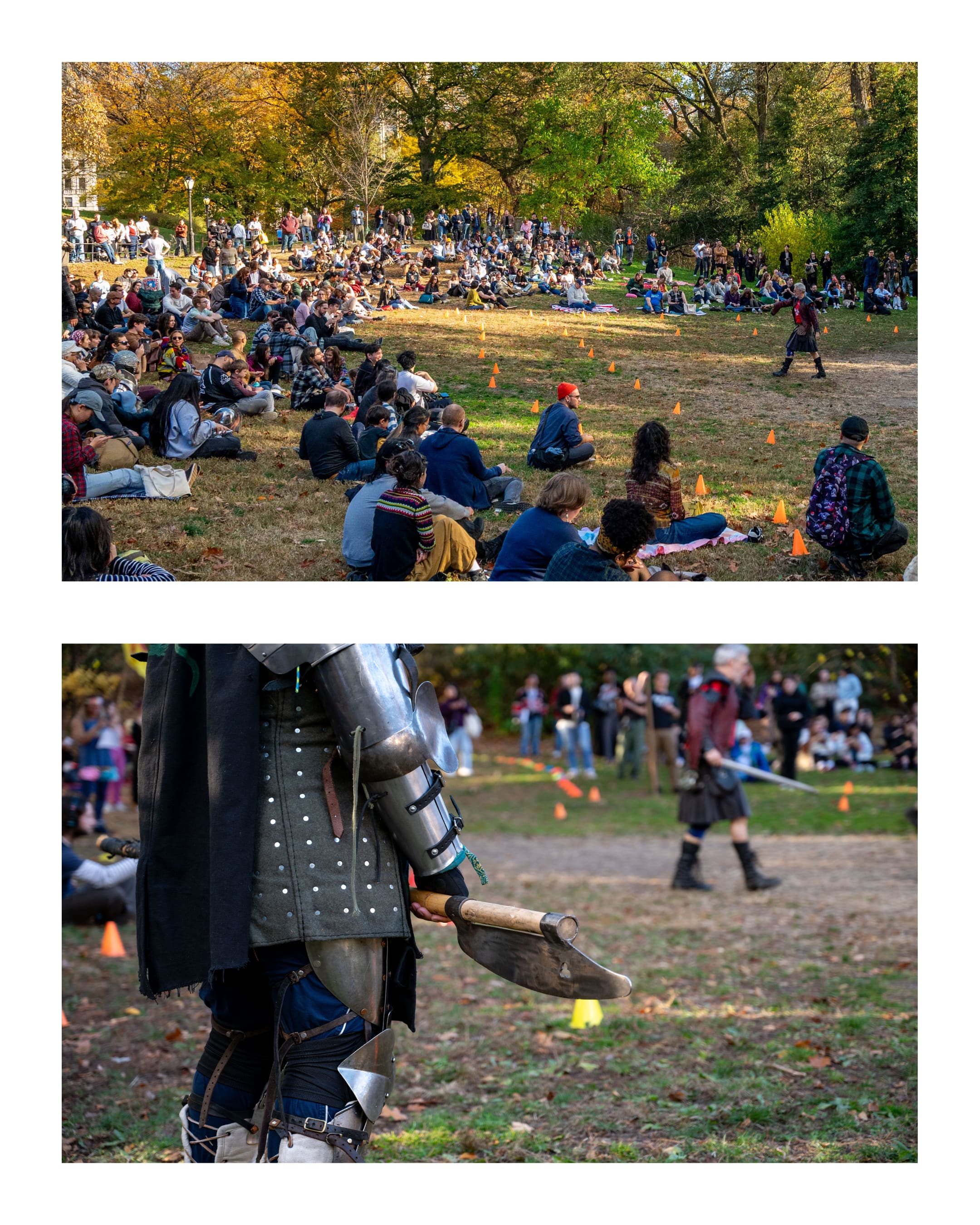
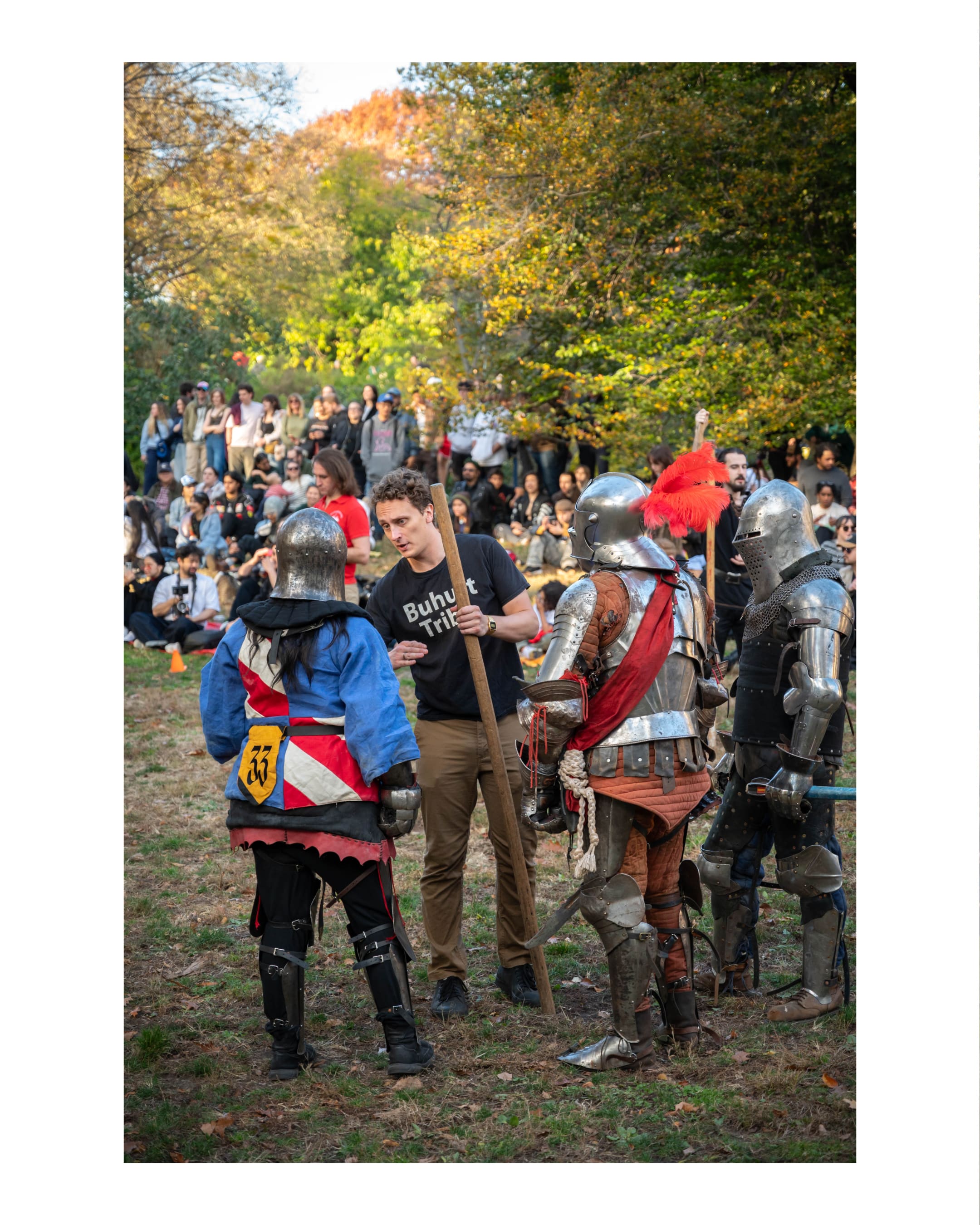
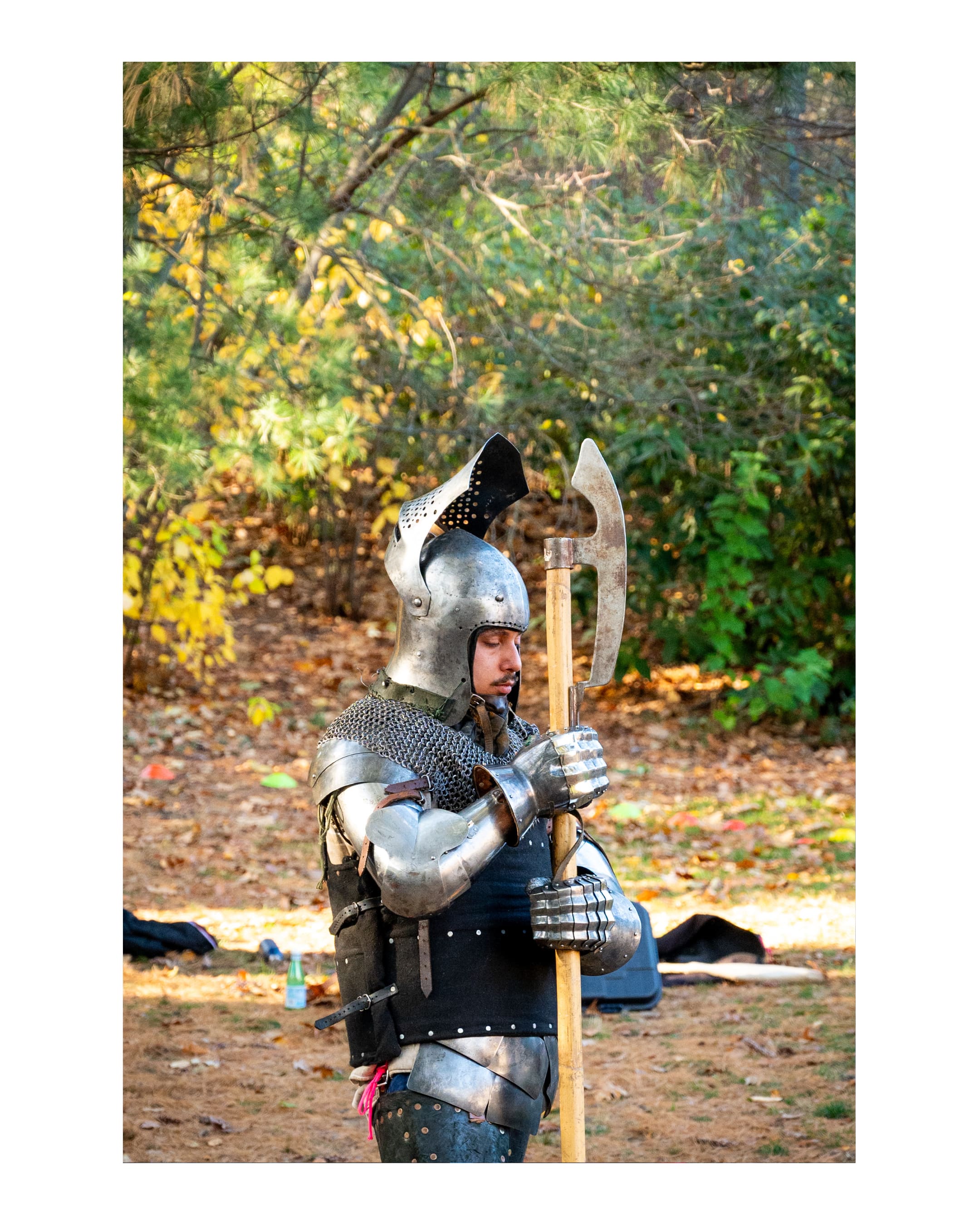
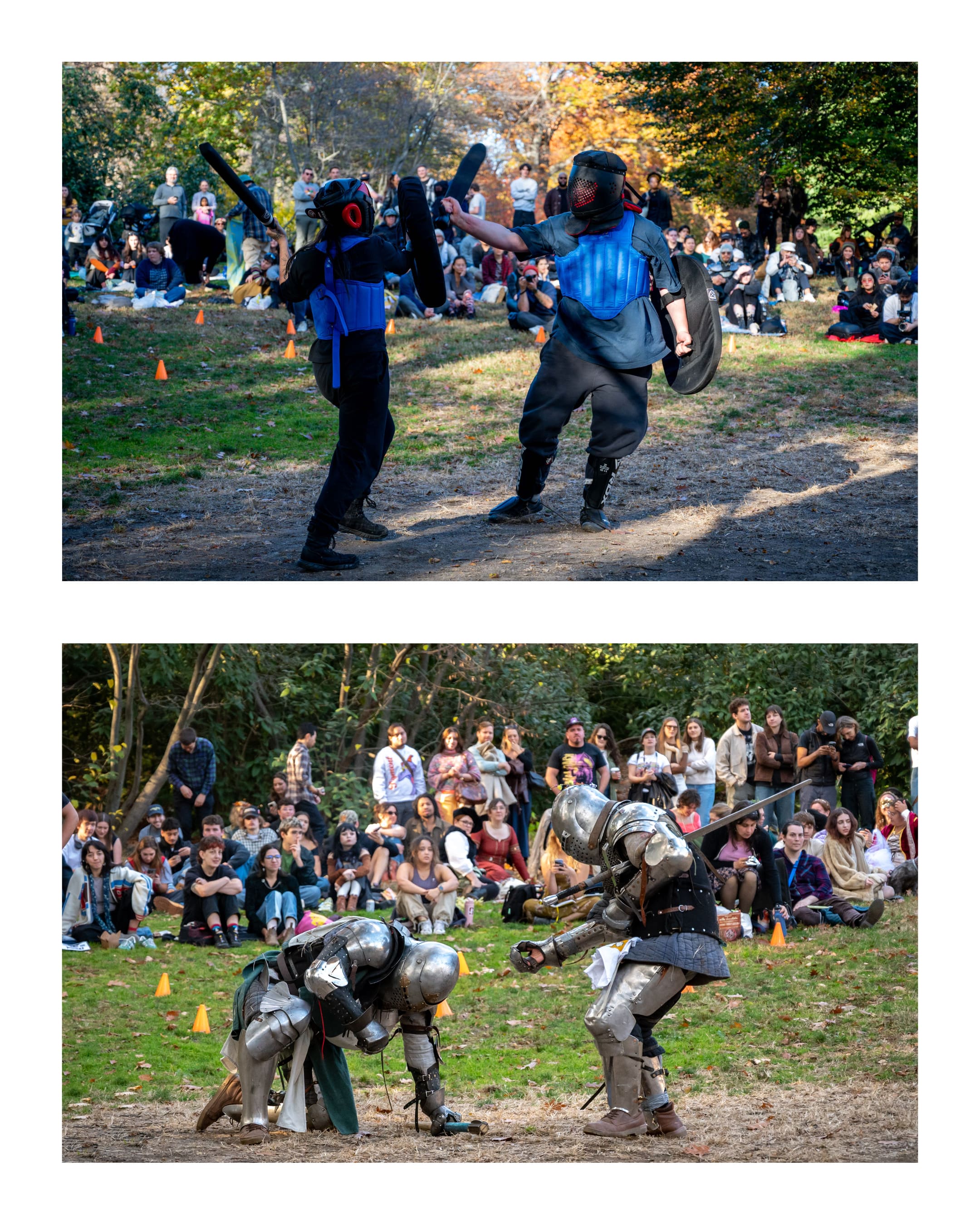
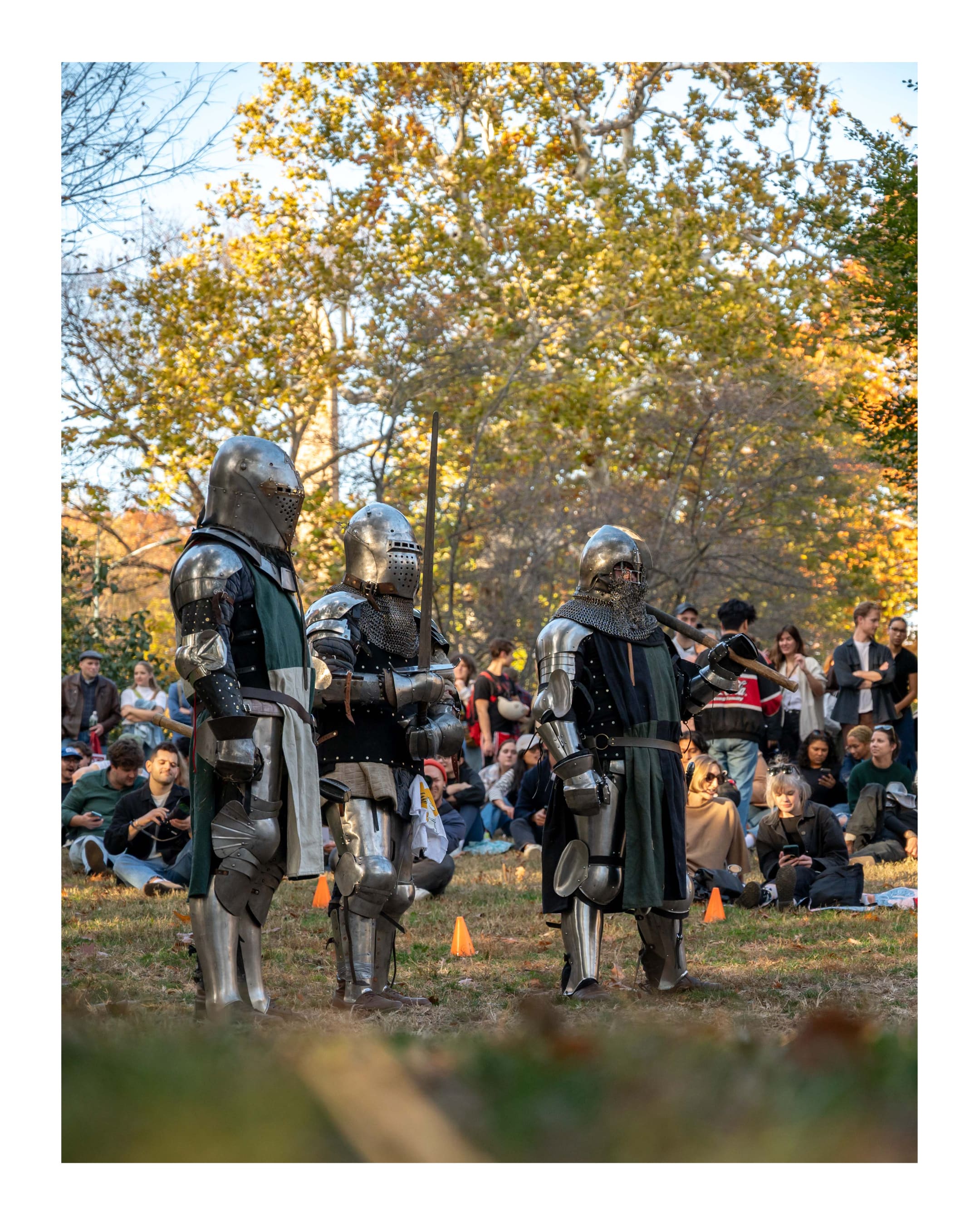
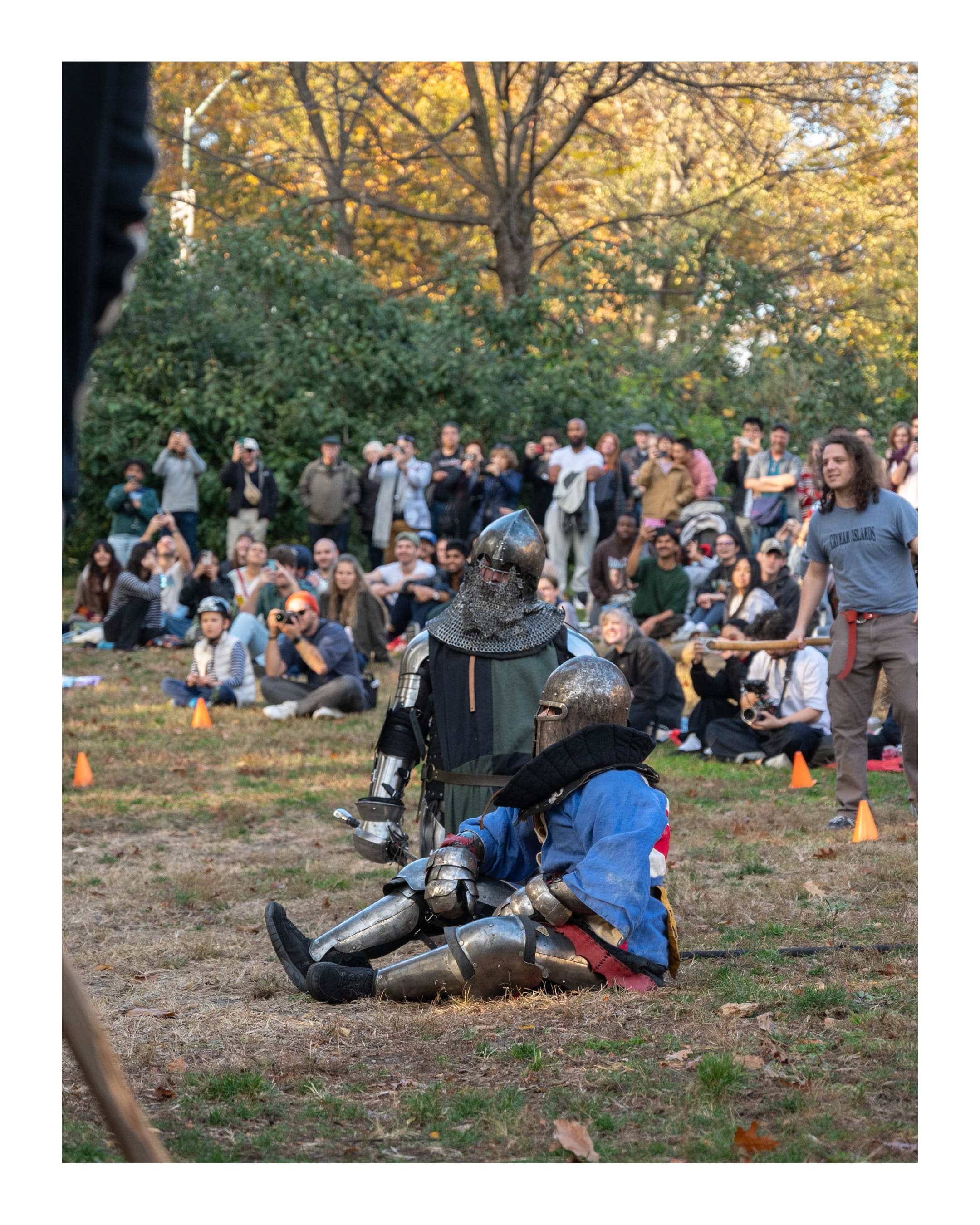
Gladiators NYC in Central Park back on November 11th, 2025





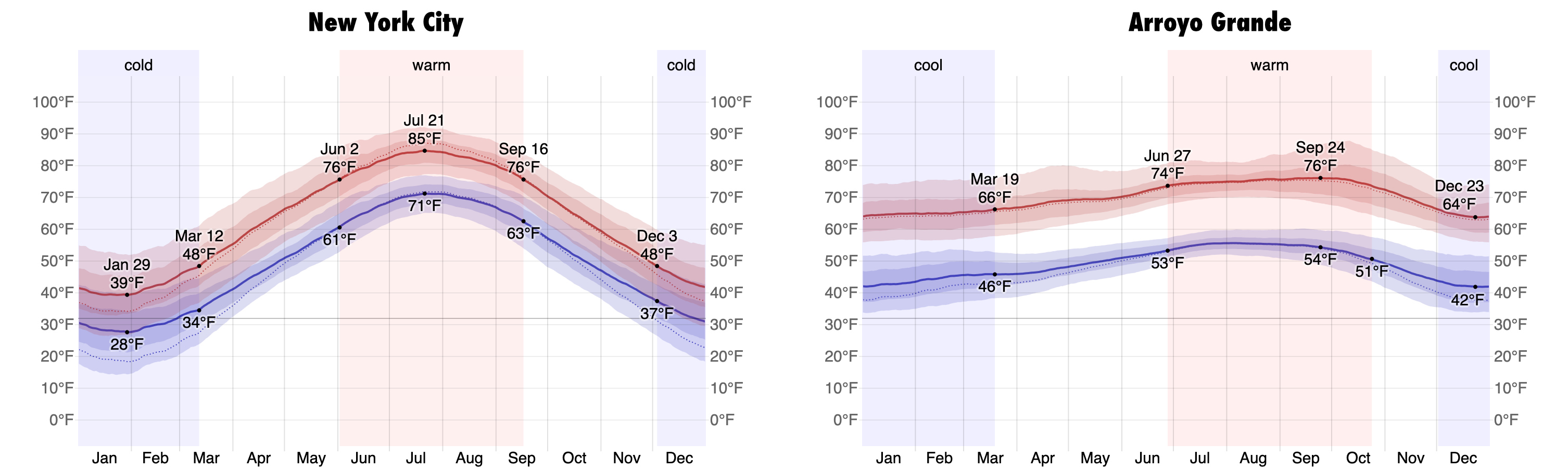
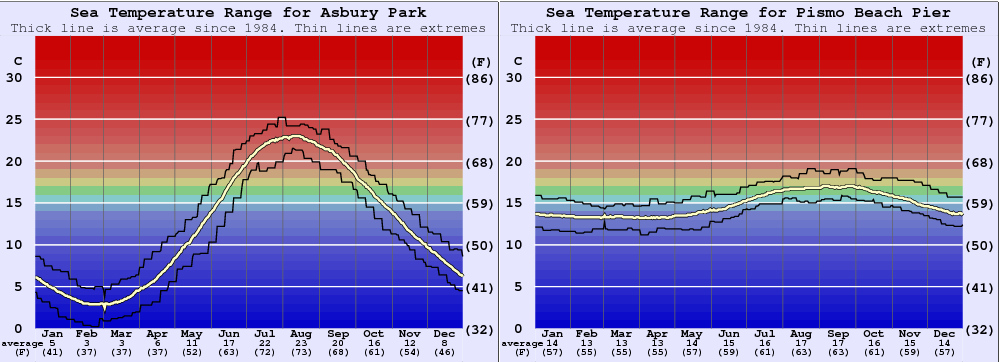
Posting these graphs so I can easily reference them next time they come up in conversation
Climate graphs from Weather Spark (NYC, Arroyo Grande)
Ocean temperatures from Surf-Forecast.com (Asbury Park, Pismo Beach)
Relisten.net I just discovered Relisten (via a post about gapless.js on HN) a website with a slick multi-column layout for browsing live music recordings on Archive.org. I somehow missed this in my search for prior art while building my own Archive.org audio player.
Relisten is built by a different Daniel in Brooklyn. Hello, Daniel! 👋
XKCD 949 from September, 2011 still rings true 15 years later.
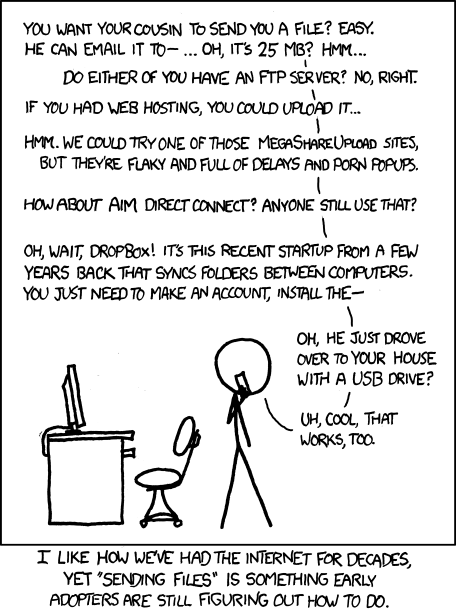
In my case, I want to share photos and videos with my friends, family, and strangers at full resolution. My experience is iPhone-centric. Here’s a quick rundown of my findings (as of March, 2026)
If I could impart one important point it’s that you cannot rely on file storage you do not pay for. If someone share something with you, download it!
| Platform | Pros | Cons | Verdict |
|---|---|---|---|
| Apple AirDrop | 1. Full resolution files
2. Works with strangers 3. Can transfer large files (multiple GBs!) quickly |
1. Everyone needs an iPhone (almost)
2. Sometimes fails without explanation |
✅
Use this to get pictures from strangers! |
| Apple iMessage | 1. Easy
2. Works with strangers 3. Acceptable resolution |
1. Usually not full resolution
2. Have to give a stranger your phone number 3. Don’t have everything in the same place |
✅
Use with strangers when AirDrop fails but be sure and save everything you want out of it becase it’s hard to find later |
| Google Drive | 1. Full resolution files
2. Folders can be set to public upload 3. Video player works well 4. Videos can be saved to iPhones via “Send a copy” |
Uploaders own the files they upload regardless of who owns the folder and it counts against their Google storage limit (unless they go through the non-intuitive process of changing ownership)
When the uploader invariably deletes their files to free up space in their Google account you will no longer have access to them |
🆗
Okay for recieving files BUT do not trust that files uploaded by other people will stay around forever |
| Dropbox | 1. Full resolution
2. More savvy users like it |
Storage is limited so uploaders delete things to save space | 🆗
Okay for recieving files BUT do not trust that files uploaded by other people will stay around forever |
| Slack DMs | Simple | 1. Full resolution
2. Available on desktop and mobile 3. Limited to 1GB per file 4. Hard to download lots of files |
🆗
Okay for recieving files |
| Apple Photos Shared Gallery | Easy, simple, integrated! | 1. Everyone needs an iPhone
2. Videos resized to 720p, photos to 2048px (src) 3. Hard to download everything 4. Doesn’t work for strangers |
⚠️
Easy for groups to quickly share photos but try and get higher quality copies some other way |
| Simple, wide usage. People who use it tend to be very familiar with it | 1. SD & HD options but both are compressed.
2. Hard to download lots of files 3. Have to share your phone number |
⚠️
Try other options first |
|
| SMS | Simple | Files are heavily compressed | ☹️
Prefer anything else |
| Instagram messages | Simple | Files are heavily compressed | ☹️
Prefer anything else |
| TikTok messages | Simple | 1. Videos not viewable on desktop
2. No way to download videos on phone except screen recording |
❌
Avoid |
| Partiful gallery | Simple, everyone already has access | Images and videos are heavily compressed | ❌
Avoid |

This is a part of a series where I digitize vinyl records. More UConn records / all records!

This album is notable for track 16, “Fight Connecticut”, which hasn’t appeared anywhere else yet.
This is a part of a series where I digitize vinyl records. More UConn records / all records!
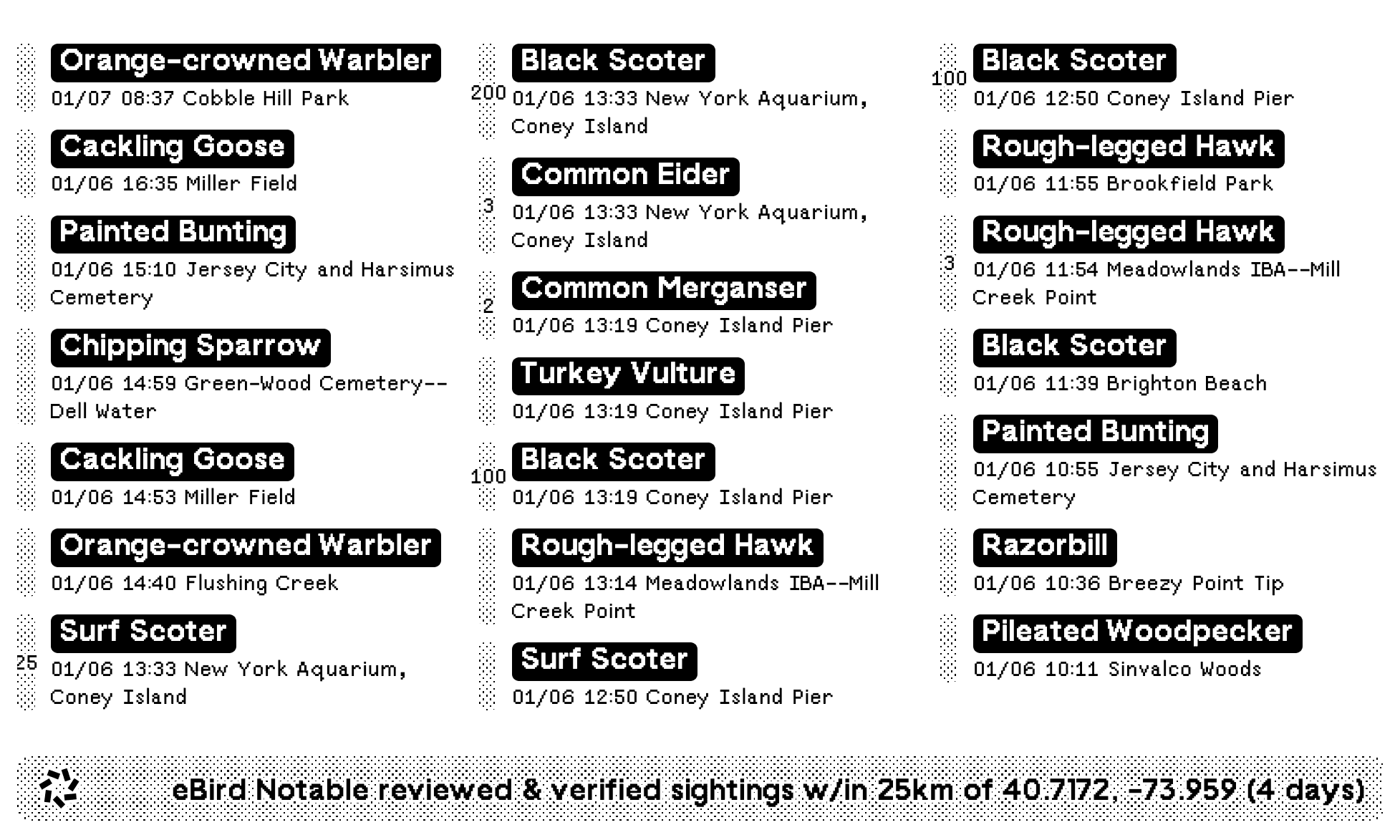
Notable Local Bird Sightings from eBird I’ve made some improvements to my eBird TRMNL plugin that displays notable birds in your area! All you need is a free account and then you can generate an API key. The plugin will do the rest!
The API docs define “notable” as the following:
Notable observations can be for locally or nationally rare species or are otherwise unusual, for example over-wintering birds in a species which is normally only a summer visitor.
This is one of several TRMNL plugins I maintain! Find them all under the tag TRMNL

This whole album is very fun. Apparently track 3 is named after a Sherlock Holmes story (Wikipedia)
The title is based on a character in one of the 56 short stories featuring Sherlock Holmes. Don Juan Murillo is a deposed dictator from Central America, formerly known as “The Tiger of San Pedro”, living in England, in the story “The Adventure of Wisteria Lodge”.
This is a part of a series where I digitize vinyl records. More Lehigh records / all records!
Converting records with a USB turntable and Raspberry Pi Peviously I left a laptop sitting by my record player running Audacity but that was inconvenient so I stuck a Raspberry Pi over there and run these commands via SSH.
I am not an expert, I’m just using the equipment I have so please don’t interpret this as “the best way to convert records”
You can hear some records converted by this process at by browsing posts tagged “vinyl”
Components:
Prior Art:
Hi-Fi analog to digital with IceCast
Utilizes IceCast to stream audio around your network. Involves running several services and is primarily focused on streaming.
PiDeck
A system for DJing with your turntable, not for converting
Z-LiveRec
This is an interesting piece of software but is built as a desktop application. I’d rather run everything from the command line. If it had a web interface I would consider purchasing it.
Ripping Vinyl Records on a Raspberry Pi
This is very close to what I am doing! Ed describes some issues writing to his local storage and file server but I haven’t noticed anything similar. Perhaps he was using an older Raspberry Pi? (I’m using a Raspberry Pi 3)
Update, March 2026:
My Setup:
Connect Raspberry Pi to record player via USB
Ensure mount directory exists and mount the NAS via SMB
mkdir -p /tmp/nas;
sudo mount.cifs //nas.local/home /tmp/nas -o user=daniel,nounix,uid=$(id -u),gid=$(id -g)
Change to the relevant directory
cd /tmp/nas/my_new_record
Identify the correct audio device
arecord -l
I’m going to be using card 2, device 0 which is indicated on the second line:
**** List of CAPTURE Hardware Devices ****
card 2: CODEC [USB AUDIO  CODEC], device 0: USB Audio [USB Audio]
    Subdevices: 0/1
    Subdevice #0: subdevice #0
Begin recording
# Start a tmux session so the recording continues even
# if the SSH connection gets disconnected
tmux;

sudo arecord --device "hw:2,0" -vv --vumeter=stereo -c 2 -f "S16_LE" -r 44100 raw_audio.wav;
Explanation:
--device "hw:2,0" This means “card 2, device 0” that we found in step 4-vv Double verbosity. Activates the VU meter--vumeter=stereo Shows two channels in the VU meter-c 2 Record two channels-f "S16_LE" Record in Signed 16-bit little endian. I picked this simply becuase it matched the Audacity default that I was previously using-r 44100 record in 44.1 kHz. Again, picked because it matched the Audacity defaultFinish recording by pressing ctrl-c on the arecord command
Future work: