Daniel's Weblog
Posts Tags Colophon
About

Tags / Video


IMG_3018.jpeg

Review of the “Telesin Remote Controller for GoPro Hero 13/12/11/10/9/8/MAX”

I often use a GoPro Hero 10 to record my bands. It’s easy to throw in a bag and attach to whatever is available in the venue via the Magnetic Swivel Clip.

Since I can’t start or stop them from the stage I often record a lot of unnecessary footage of set up and tear down. Recording extra video isn’t a big deal when the GoPro is plugged in to an external power source1 but sometimes external power isn’t available and every minute of battery life counts2. After a recent gig where I had to run up and down some stairs several times to start and stop recording I decided I should get a remote. I tried using the GoPro Quik app on my phone as a remote but it was unable to connect… I believe both the app and the remote both use Bluetooth Low Energy (BLE) so that may still be an issue.

I purchased the remote for $37 from B&H. It’s lighter than I expected and the build quality feels good. The interface is simple and includes everything you need but no more.

It does basically everything you’d want from a remote to do but here are a few things I haven’t seen mentioned online anywhere:

Color screen

The screen is color but it doesn’t support any kind of live preview.

GoPro Names

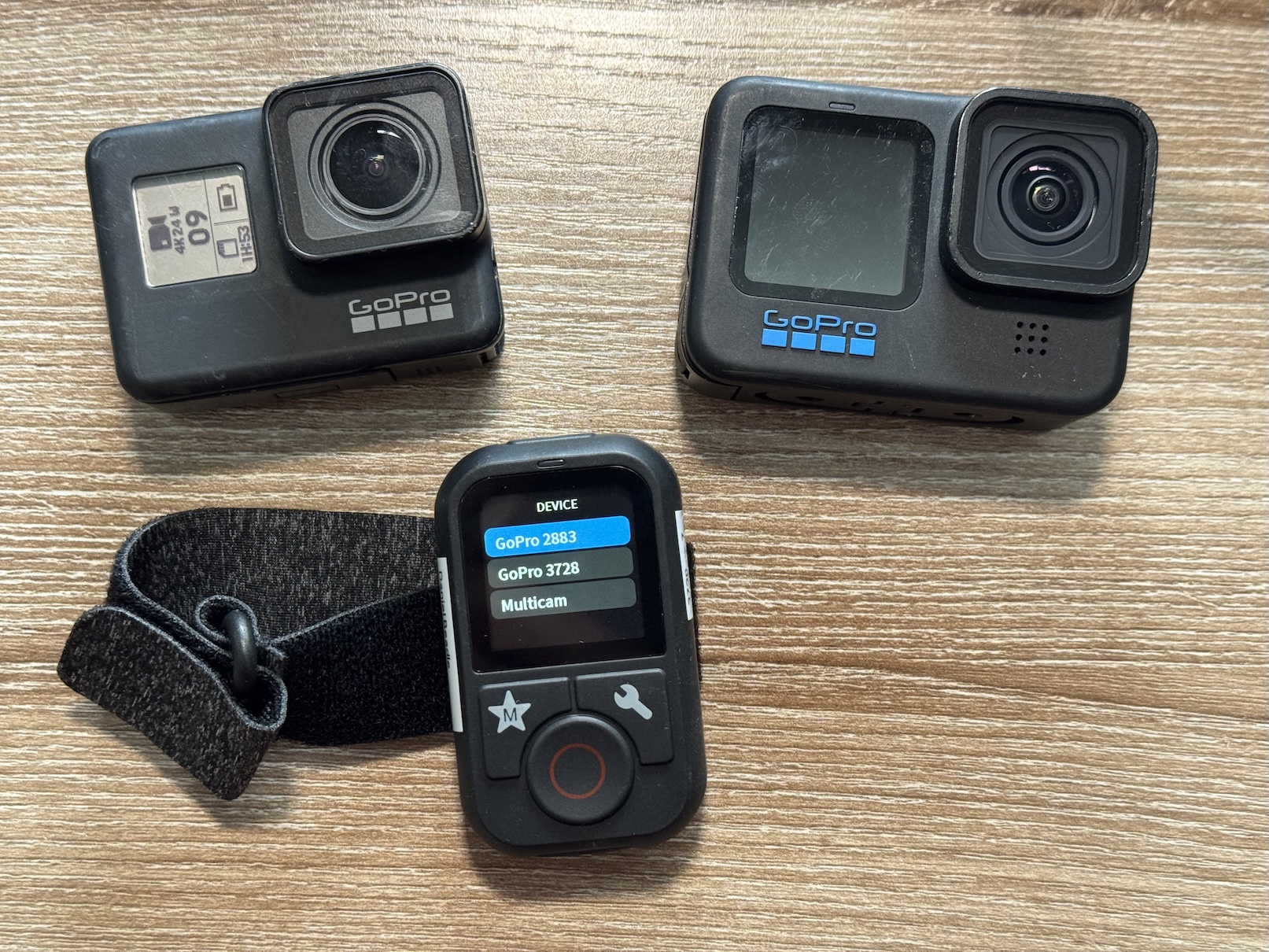
If you have multiple devices connected you cannot give them memorable names. They are identified by a 4-digit id. I printed and attached a label clarifying which camera is which. This is illustrated in the image at the top of this post.

Powering on via Remote

If the remote has been paired, it can wake the GoPro from the powered off state IF AND ONLY IF the GoPro has been powered on previously. Let me clarify what I mean by that:

This does not work:

  1. Insert battery into GoPro
  2. Press record on the remote

Nothing happens ☹️

This works:

  1. Insert battery into GoPro
  2. Turn on GoPro
  3. Turn off GoPro
  4. Press record on the remote

GoPro turns on, starts recording, and turns off again when you stop recording 😊

Note that in this process the GoPro turns on, starts recording, and immediately turns off again and you cannot change any presets.

Changing Video Presets

The remote can change presets on the camera but it can only change VIDEO presets if the “Video Performance Mode” is set to “Maximum Video Performance”. If the mode is set to “Extended Battery” or “Tripod” the remote will list the other presets and let you select them but the camera will not change. Interestingly enough it can change PHOTO and TIME LAPSE presets when set to “extend battery” or “tripod” modes3.

Partially Compatible with the Hero 7 Black

The remote can turn on and start / stop video on the Hero 7 Black which I have not seen listed anywhere. Multi-camera mode (starting and stopping multiple cameras at once) also works. You cannot change presets and the Hero 7 shuts off after finishing the video. Again, not a big concern for me but worth mentioning.


  1. I recommend Lossless cut for easily chopping up large files ↩︎

  2. The Enduro batteries help some. If you’re trying to squeeze out every minute I would recommend them. ↩︎

  3. I suspect the issue is related to how the video presets are named. Some presets slightly differently in different parts of the UI. Maybe someone could tweak the firmware to fix it but I am happy to choose my preset and simply use the remote to start and stop the camera. ↩︎


GoPro Manual File Recovery I’ve never actually used any of the labs firmware but I found this tidbit interesting for repairing an improperly closed file. Reproduced here for posterity:

# Useful Tip - Manual File Recovery

So you have a corrupted/unclosed GoPro file. You crashed your drone, and the battery was disconnected before the file was closed, or you ran your car wheel over a recording GoPro, crushing it. If your SD Card survived, the file is likely recoverable using another GoPro.

0. You need any working GoPro camera, although the same model and firmware version is advised. If you’re using Labs Firmware and are using Altered file naming (this page’s Labs feature), reset the filenaming to the default.
1. Copy the file you want to repair to your PC
2. With a working GoPro, record for 10+ seconds then pull the power or battery, while still recording. You want an intentionally unclosed file. The camera will remember it needs to repair only this file
3. Add that SD Card to your PC directly (not via camera USB)
4. Copy the filename of the last MP4 captured. e.g. “GX010358.MP4”
5. Delete this dummy file from the SD Card
6. Add your previous corrupted (unclosed) file to the SD card, and rename it to the copied name. e.g. If your filename was “Drone03_GX010201.MP4”, or just “GH010330.MP4”, rename it to “GX010358.MP4” (your last MP4 filename)
7. Insert the SD Card with your corrupted file back into the working GoPro camera
8. Power on the camera, and the “last” file will be repaired
9. Once the camera completes the file repair process, you can eject the SD Card and backup and play the now repaired file

Compatibility: Labs enabled HERO8, HERO9, HERO10, HERO11, HERO12, HERO13, MAX and BONES


Tool - Lossless Cut. When I have an hour of video and I need to extract 5 minutes I reach for Lossless Cut instead of Final Cut. It’s a cross platform GUI built on top of ffmpeg. It can merge clips from the same camera in to a single file and extract pieces of a file, both without reencoding. It compliments the commands documented here. I like that I can watch through a video, mark multiple sections for export, and then export them all at once. Since it doesn’t reencode the video it’s much faster than using conventional video editing software.

A few caveats:

  • On MacOS it can read a file over SMB without issue but I’ve found trying to write to SMB causes issues. Someone else reported the same issue but it seems like its an SMB implementation issue and they won’t be fixing that.
  • It often leaves a split second of black frame before and after each extracted clip. Be sure to trim that off before sharing!


My go to commands for processing GoPro footage (or really any video) with ffmpeg:

  1. Merge all mp4 files in to a single file without reencoding the whole thing (Small amount of reencoding occurs where the clips are joined):

    This is very useful on computers without powerful GPUs (older computers or in my case my Synology NAS)!

    Note that all clips need to be recorded with the same settings

ffmpeg -f concat -safe 0 -i <(for f in GX*.MP4; do echo "file '$PWD/$f'"; done) -c copy output.mp4
  1. Compress all files in a directory:
for i in GX*.MP4; do ffmpeg -i "$i" -c:a copy -c:v h264 -crf 22 "${i%.}_lowres.mp4"; done
  1. Extract audio from a video file:
ffmpeg -i $1 -vn -acodec copy "${1%.*}.aac"