Daniel's Weblog
Posts Tags Colophon
About

Tags / Posts


Oct 31, 2018


Temperature Sensors Part 3: Sensor Hardware

This is post number 3 in a series describing my DIY temperature and humidity sensors.

The Sensor:

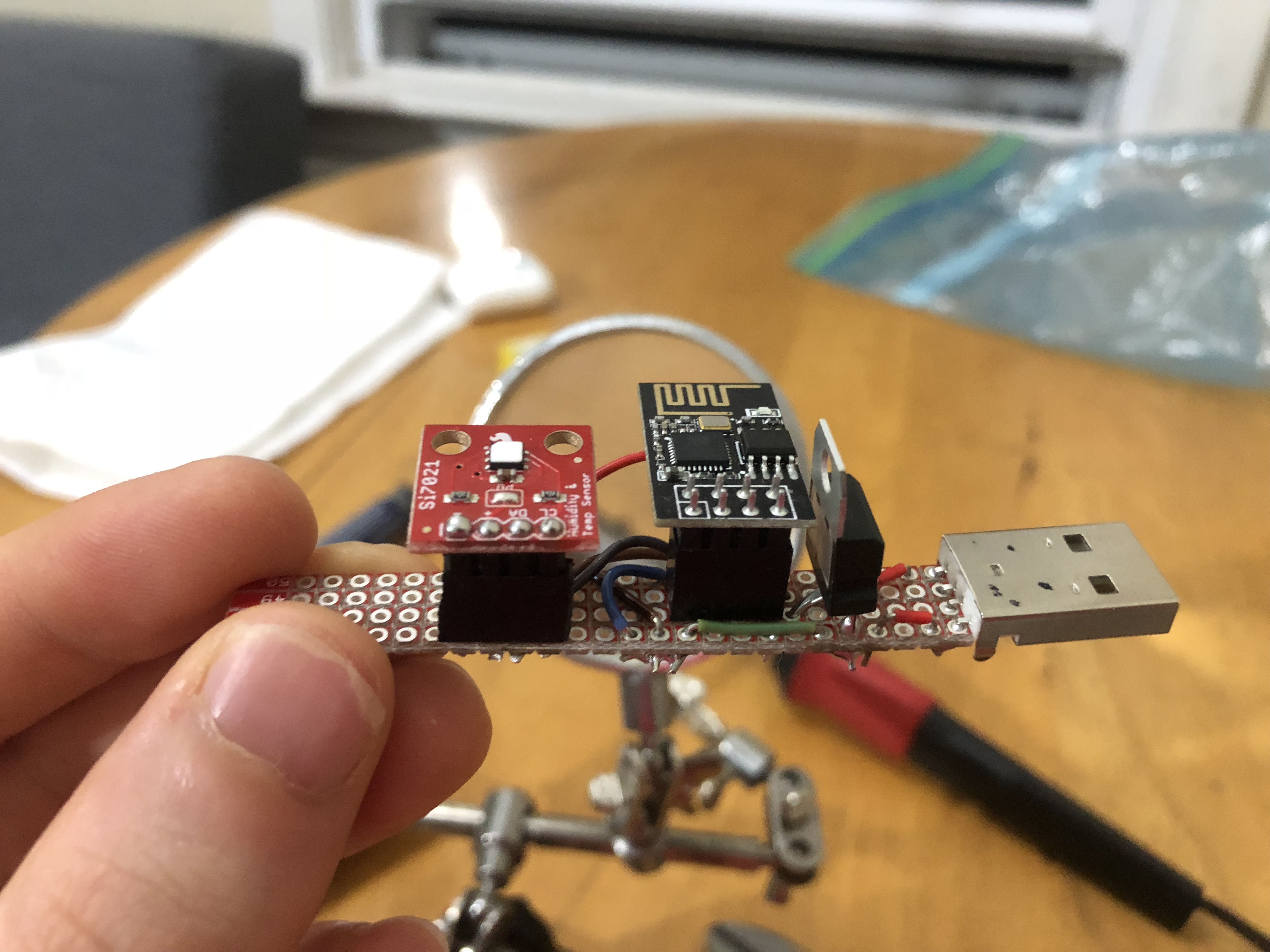
Profile view of the sensor

Hardware Breakdown:

The sensors themselves are pretty simple, consisting of only five components.

Not including solder, various lengths of wire, and the perf board that the components are mounted on. I used a Sparkfun Snappable Protoboard ($7.95) as the base for each of my sensors.

  1. ESP8266 WiFi Module ($6.95)
  2. Si7021 Humidity and Temperature Breakout Board ($7.95)
  3. LD1117V33 Voltage Regulator ($1.95)
  4. USB Type A plug ($1.50)

Total cost before tax: $18.35

Prices given are from Sparkfun as of September, 2018

Design Choices:

The goal was a sub-twenty dollar, reasonably accurate temperature sensor that I could place anywhere in my house and forget about.

Data Transmission

I want to store this data in InfluxDB (Detailed in Part I) so I can visualize it in Grafana (Detailed in Part II).

My house isn’t wired for Ethernet– if it was I could solve both the transmission and power problems with Power over Ethernet.

In the past I’ve worked with the Nordic NRF24L01+ radios which are reasonabley priced and have decent range, but I would need some sort of relay that could receive the wireless transmission and send it over TCP/IP to the InfluxDB. Someone has done this, but it seems like extra work when I already have a Wi-Fi network in my house.

So I went with the ESP-8266 Wi-Fi module because I had two laying around. Future iterations may use a different version of the chip.

Power

Some impressive work has been done making the ESP8266 run on batteries for a very long time, but batteries eveuntally need charging or changing.

What I do have lying around though, is a bunch of USB wall chargers that can put out 5V and more than enough amperage which, using a LD1117, can be converted from 5V into the 3.3V that the ESP-8266 and sensor need. The ESP-8266 only consumes 170mA tops and the Si7021 sensor uses all of 150 μA, so the LD1117’s max of 800mA is overkill, but hey, I majored in Computer Science and it seems like a good solution to me.

In summary 120V AC power comes out of the wall, gets converted to 5V DC by the USB wall charger, which the sensor is plugged in to. Onboard the circuit board the voltage is dropped again to 3.3V which the radio and the sensor can use.

Right now I’m only using the USB power and ground lines, but I dream of being able to fit some sort of USB Serial Adapter and a logic level converter so that the ESP-8266 can be programmed directly from the USB port. At the moment it’s a bit of a pain to change Wi-Fi networks, I have to remove the ESP8266, and plug it into a jig to reprogram it.

In Action

One issue is that a lot of stress can be put on the pins connecting the USB port to the sensor board.


Oct 29, 2018


Temperature Sensors Part 2: Grafana

Recording temperature into InfluxDB isn’t very useful if I can’t visualize it. Thanksfully, Grafana exists.

This is part 2 in a series describing my DIY temperature and humidity sensors.

Grafana Setup

I have Grafana running on the same webserver as this website, configured with two different data sources:

  1. My InfluxDB server (Currently a Raspberry Pi)
  2. The DarkySky.net plugin for an approximate idea of the outside temperature (Plotted as apparentTemperature on the graph below)

Records:

  • The recorded temperature in my room was 56.09°F on October 19th at 8 AM. Later that day the heat was turned on
  • Since the heat has been turned on:
    • Living room:
      • Max Low: 67°F
      • Max High: 68.34°F
    • My Room:
      • Max Low: 36.65°F
      • Max High: 75.02°F

Takeaways

  • My third floor room is colder than the second floor living room directly below by about 5-7°F on average.
  • Turning on the living room ceiling fan lowers the living room temperature, but does not change the temperature in my room.

Actual Graphs

Below is a “snapshot” of the data my temperature sensors collected between Oct 22nd and Oct 29th, 2018. To make it load quickly I’ve set the resolution to 30 minutes (each point on this plot is the average of the past 30 minutes).

Temperature Graph (Direct)

I’m also collecting relative humidity data:

Relative Humidity Graph (Direct)


Oct 19, 2018


Temperature Sensors Part 1: Influx DB

This is part 1 in a series describing my DIY temperature and humidity sensors.

I built some temperature and humidity sensors based on ESP8266 Wi-Fi modules for house so I know just how cold I am at any given moment. This details the settings on the InfluxDB server that stores everything. I made package this up in to a little library (Github) to make things easier.

InfluxDB

Each sensor has it’s own measurement (the name of the room they’re located in) and updates the database multiple times per minute. This is excessive, but I forgot about it and it’s a bit of pain to reprogram them.

name: DanielsRoom
time                           fahrenheit host                 region  relative_humidity
----                           ---------- ----                 ------  -----------------
2018-10-20T00:00:02.328505836Z            esp8266-DanielsRoom1 us-east 0.547224
2018-10-20T00:00:03.528801987Z 72.574486  esp8266-DanielsRoom1 us-east 
2018-10-20T00:00:03.768001235Z            esp8266-DanielsRoom1 us-east 0.547147
2018-10-20T00:00:04.687234974Z 72.574486  esp8266-DanielsRoom1 us-east 
name: LivingRoom
time                           fahrenheit host                region  relative_humidity
----                           ---------- ----                ------  -----------------
2018-10-20T00:00:02.643783571Z 72.207687  esp8266-LivingRoom1 us-east 
2018-10-20T00:00:03.048582528Z            esp8266-LivingRoom1 us-east 0.504728
2018-10-20T00:00:03.79192576Z  72.188385  esp8266-LivingRoom1 us-east 
2018-10-20T00:00:04.052576581Z            esp8266-LivingRoom1 us-east 0.504651

LivingRoom and DanielsRoom belong to a retention policy called two_hours which stores the data points for… two hours!

name      duration shardGroupDuration replicaN default
----      -------- ------------------ -------- -------
autogen   0s       168h0m0s           1        false
two_hours 2h0m0s   1h0m0s             1        true
forever   0s       168h0m0s           1        false

Long before the two hour time limit is up a continuous query runs and calculates the average sensor value for the past minute and stores it in the forever retention policy which keeps it forever.

name: 
name                               query
----                               -----
cq_1m_danielsroom_humidity         CREATE CONTINUOUS QUERY cq_1m_danielsroom_humidity ON  BEGIN SELECT mean(relative_humidity) AS mean_relative_humidity INTO HouseholdDatabase.forever.danielsroom_relative_humidity FROM HouseholdDatabase.two_hours.DanielsRoom GROUP BY time(1m) END
cq_1m_danielsroom_fahrenheit       CREATE CONTINUOUS QUERY cq_1m_danielsroom_fahrenheit ON  BEGIN SELECT mean(fahrenheit) AS mean_fahrenheit INTO HouseholdDatabase.forever.danielsroom_fahrenheit FROM HouseholdDatabase.two_hours.DanielsRoom GROUP BY time(1m) END
cq_1m_livingroom_fahrenheit        CREATE CONTINUOUS QUERY cq_1m_livingroom_fahrenheit ON  BEGIN SELECT mean(fahrenheit) AS mean_fahrenheit INTO HouseholdDatabase.forever.livingroom_fahrenheit FROM HouseholdDatabase.two_hours.LivingRoom GROUP BY time(1m) END
cq_1m_livingroom_relative_humidity CREATE CONTINUOUS QUERY cq_1m_livingroom_relative_humidity ON  BEGIN SELECT mean(relative_humidity) AS mean_relative_humidity INTO HouseholdDatabase.forever.livingroom_relative_humidity FROM HouseholdDatabase.two_hours.LivingRoom GROUP BY time(1m) END
Self-Hosting Gitea

Oct 9, 2018


Since I graduated my student discount expired and I don’t want to pay $7 a month to Github for private repositories. So time to take Gitea for a whirl.

  1. Install from the binary
  2. Set up the service
    One minor change here, since I’m running Grafana on port 3000 already I’m going to run Gitea on port 4000 by doing modifying the following line:
ExecStart=/usr/local/bin/gitea web -p 4000 -c /etc/gitea/app.ini
  1. Add a proxy pass rule for Apache:
    /etc/apache2/sites-enabled/danielbeadle.net.conf
ProxyPass /git http://localhost:4000
  1. Set the root_url for Gitea /etc/gitea/app.ini
ROOT_URL = https://danielbeadle.net/git/
  1. Navigate to the install page https://danielbeadle.net/git/install
  • Database type: SQLite3
  • Path: /home/git/gitea/data/gitea.db
  • Repo Root Path: /home/git/gitea-repositories
  • Run as Username: git
  • ssh Server domain: danielbeadle.net

Update as of November, 2018: I have migrated all of my private repositories (including the one this website is tracked with) over to Gitea and it is working wonderfully. In was as simple as cloning my private repos from Github, initalizing a new repo in Gitea, changing the remote, and pushing.

Angular Recipes

Jul 29, 2018


Or: things I have implemented multiple times while developing in Angular 2 / Angular 6. Mostly for my own reference, but if it helsp someone else, great. This is a living post that I will add to and edit as I continue to develop in Angular without necessarily timestamping changes.

<a [routerLink]="['/interface-client']">All Clients</a> > <a [routerLink]="['/interface-client/', id]">{{ client.name }}</a>

Display Scrollbar while Bootstrap Modal is open

.modal-open
{
  overflow-y: scroll;
}

Source

Monitor how Bootstrap Modal was closed from parent

parent.component.ts

openModal() {
  const modalRef = this.modalService.open(ConfirmModalComponent); // Open modal
  modalRef.componentInstance.model = this.model; // Pass object to modal

  // Change the variable submitted based on how the modal was closed
  modalRef.result.then(value => { this.submitted = value === 'submitted' ? true : false; });
}

confirm-modal.component.ts:

onSubmit() {
  this.dataService.newApp(this.model);
  this.activeModal.close('submitted');
}

onCancel() {
  this.activeModal.close('canceled');
}

Dynamically Change Dropdown Contents (Angular Forms)

Say I have two dropdown elements in the form of select tags, one with id “species” and the other with id “name”. I want the available names to change based on the species currently selected, and I never want either dropdown to be blank.

More good advice: KastePanyan24 on Medium

Here is a working example on stackblitz.

app.component.html

<h3>INPUT:</h3>

<form *ngIf="formReady === true">
  <div class="form-group">
    <label for="species">Species: </label>
    <select class="form-control"
            id="species"
            (change)="onChange($event.target.value)"
            [(ngModel)]="model.species"
            name="f_species">
      <option *ngFor="let species_singular of species" [value]="species_singular">
        {{ species_singular }}
    </select>
  </div>

  <div class="form-group">
    <label for="name">Name: </label>
    <select class="form-control"
            id="name"
            [(ngModel)]="model.name"
            name="f_name">
      <option *ngFor="let name of appropriateNames" [value]="name.name">
        {{ name.name }}
    </select>
  </div>
</form>

<h3>OUTPUT:</h3>
<pre>{{ model.species }}, {{ model.name }}</pre>

app.component.ts

import { Component, OnInit } from '@angular/core';

@Component({
  selector: 'my-app',
  templateUrl: './app.component.html',
  styleUrls: [ './app.component.css' ]
})
export class AppComponent implements OnInit {
  /* The model the form begins with. */
  model = { species: 'cat', name: 'spot' }

  /* Our data */
  species: string[] = ['cat', 'dog'];
  names = [
    { species: 'cat', name: 'smokey' },
    { species: 'cat', name: 'spot' },
    { species: 'dog', name: 'kobe' },
    { species: 'dog', name: 'cheddar' }
  ];

  /* The names allowed to be used with the currently selected species */
  appropriateNames;

  /* Delay rendering of the form until appropriateName has been populated.
   * Without this the name dropdown is empty until the species is changed, which
   * is rather inconvenient if you want to use the first species in the dropdown */
  formReady: boolean = false; 

  ngOnInit()
  {
    /* Run the change event handler on page load to populate appropriateNames
     * variable and the name dropdown */
    this.onChange(this.model.species);
    this.formReady = true;
  }

  /**
   * Runs every time the species drop down is changed and populates
   * the name dropdown with the names available for that species.
   * 
   * @param species The species currently selected
   */
  onChange(species: string) {
    console.log('selected species: ', species);

    /* Everytime the dropdown changes the name array is iterated through. 
     * With large arrays this could slow things down, but I haven't had any 
     * issues with small arrays */
    this.appropriateNames= this.names.filter(obj => {
      return obj.species === species;
    });

    /* Change the name dropdown to the first item in the appropriateName array */
    this.model.name = this.appropriateNames[0].name;

    console.log(this.appropriateNames);
  }
}

Ng2-Smart-Table is a great library. Unfortunately, linking inside of a cell is a little difficult. I wanted to use [routerLink] inside the cell, but Angular kept sanitizing it.

To use [routerLink] inside of a cell, create a sub-component.

The table variables look like this:

// Table Stuff
private values = [];
source: LocalDataSource;
settings = {
  actions: {
    add: false,
    edit: false,
    delete: false
  },
  mode: 'external',
  columns:
  {
    tableData: {
      title: 'Hostname',
      type: 'custom',
      renderComponent: LinkComponent
    }
  }

And to populate the table data:

this.dataService.fetchHosts(key).subscribe((result: object[])  => {
  result.map(mapped => {
    const value = mapped['value'];
    this.values.push({ tableData: value });
  });
  this.source.load(this.values);
});

The subcomponent, LinkComponent looks like this:

export class HostnameCellComponent implements OnInit{
  @Input() value: string;

Pass multiple pieces of data in to a Ng2-Smart-Table sub-component

Okay, but what if your link needs multiple variables to generate it? Unfortunately, the easiest way I found to do this is to create a sub-component as above, concatenate your variables in to a single, comma seperated, string, pass said string in to the component, and split it up there.

This is gross, but it means the table is still sortable.

valuelink.component.ts:

export class HostnameCellComponent implements OnInit{
  @Input() value: string;
  value_part1: string = '';
  value_part2: string = '';

  constructor(private route: ActivatedRoute, private router: Router) {
  }

  ngOnInit()
  {
    const array: string[] = this.value.split(',');
    this.value_part1 = array[0];
    this.value_part2 = array[1];
  }
}
On/Off AC Control Systems

May 5, 2018


It’s gotten very warm the past few days… lets take a crack at adding some logic to my “dumb” window AC unit to keep things cool!

The Cooling System:

My in-window air conditioner is not particurarly fancy.

What it can’t do:

❌ Remote Control
❌ Automatic turn on / off
❌ Network connectivity
❌ Turn on at set time

What it can do:

✅ Put out cool air

And to its credit, it does do a decent job at that, but I want more!

Making it smarter!

I need to know is the current temperature in the room. I’m currently doing that with an Arduino, an ethernet shield, and an Si7021 temperature / humidity sensor. It sits on my cabinet on the other side of the room and when I punch in it’s IP address it responds with a bare-bones website displaying the current data

Once a minute it also pushes a reading to my local InfluxDB server (hosted on site on a Raspberry Pi) for record keeping. I’m using Grafana to make all fo these pretty graphs.

I’ve got another Raspberry Pi connected to a Powerswitch Tail 2. It queries the InfluxDB every 2 minutes or so to get the temperature in the room and turns on, or off, the AC accordingly.

{
  "fahrenheit": 72.65,
  "celsius": 22.58,
  "relative humidity": 40.62,
  "relative light level": 0
}

You can see the code running the Arduino Sensor and the Raspberry Pi

Water Measurements... from the Command Line

May 1, 2018


You know what I don’t have any practical use for? A command line tool to get USGS water data!

But, inspired by this Swiss tool I made one anyways.

Some USGS sensors don’t include water temperature, but they’ve got other cool stuff like discharge and gage height. With the power of hipsterplot, we can get some cool output!

Much more fun than writing essays, and it’s totally going in my /etc/profile file :-)

https://github.com/djbeadle/USGS-Water-CLI

Scraping React with Python

Apr 14, 2018


The Campus Labs system Lehigh is using for student engagement is called “LINC” and it sucks. There, I said it. It’s a bloated, confusing React app that hinders club activities on campus. I say that having been a club president trying to administer a LINC page and now I need to contact all of the clubs to get their info for the yearbook.

I was able to get a CSV file from an administrator with the email addresses of all the club presidents, but not with their respective clubs.

I need to email all of the clubs to get them to submit photos and info to the yearbook, and my generic call to action mail-merge isn’t having great results.

So, let’s get that information ourselves.

First we need a list of all the clubs

That’s relatively easy. Just gotta scroll down through https://lehigh.campuslabs.com/engage/organizations repeatedly clicking the “load more” button at the bottom to generate a list of all the currently active clubs.

Then we can download the HTML.

Get the clubs URLs out of the HTML

This is what a single club’s entry looks like (There are around 350 clubs at Lehigh), have they never heard of classes?

<div>
  <a href="/engage/organization/marching97" style="text-decoration: none;">
<div tabindex="-1" style="color: rgba(0, 0, 0, 0.870588); transition: all 450ms cubic-bezier(0.23, 1, 0.32, 1) 0ms; box-sizing: border-box; font-family: &quot;Source Sans Pro&quot;, sans-serif; box-shadow: rgba(0, 0, 0, 0.117647) 0px 1px 6px, rgba(0, 0, 0, 0.117647) 0px 1px 4px; border-top-left-radius: 2px; border-top-right-radius: 2px; border-bottom-right-radius: 2px; border-bottom-left-radius: 2px; z-index: 1; height: 100%; border: 10px; display: block; cursor: pointer; text-decoration: none; margin: 0px 0px 20px; padding: 0px; outline: none; font-size: 16px; font-weight: inherit; position: relative; line-height: 16px; background-image: none; background-position: initial initial; background-repeat: initial initial;">
  <div style="padding-bottom: 0px;">
<div>
  <div style="margin-left: 0px; padding: 15px 30px 11px 108px; position: relative; background-color: rgb(255, 255, 255); height: 82px; overflow: hidden;">
<img alt="" size="75" src="https://images.collegiatelink.net/clink/images/c0489b78-ab1d-440e-a2e6-9f5d7bd331810db2b1fd-31d2-489f-acec-9202a9e0d090.png?preset=small-sq" style="color: rgb(255, 255, 255); background-color: rgb(188, 188, 188); display: inline-flex; align-items: center; justify-content: center; font-size: 37.5px; border-top-left-radius: 50%; border-top-right-radius: 50%; border-bottom-right-radius: 50%; border-bottom-left-radius: 50%; height: 75px; width: 75px; position: absolute; top: 9px; left: 13px; margin: 8px; background-size: 55px;">
<div style="font-size: 18px; font-weight: 600; color: rgb(73, 73, 73); padding-left: 5px; text-overflow: ellipsis; margin-top: 5px;"> Marching 97 </div>
<p class="DescriptionExcerpt" style="font-size: 14px; line-height: 21px; height: 45px; margin: 15px 0px 0px; color: rgba(0, 0, 0, 0.541176); overflow: hidden; text-overflow: ellipsis; display: -webkit-box; -webkit-line-clamp: 2; -webkit-box-orient: vertical; padding-left: 5px;">Since 1906, the Marching 97 has been a part of Lehigh with its signature leg-liftery, sing-singery, and a unique brand of spirit called psyche! The Marching 97 performs a new student-written show during halftime at every performance.</p>
  </div>
</div>
  </div>
</div>
  </a>
</div>

What we need is each club’s unique URL, which is embedded somewhere inside this hellscape of React output.

/engage/organization/marching97  

A little regex can help us do that:

\/engage\/organization\/[^"]*

I like building Regex on regexr.com.

Turn that in to a full URL

Now we’ve got all of the paths from AlphaOmegaEpsilon to zoellnerartscenter stored in All_Orgs.txt. Time to turn those in to full URLs with a quick perl script.

perl -e 'while (<>) {print "https://lehigh.campuslabs.com$_"}' < All_Orgs.txt > All_Orgs_full.txt

Set up our Python Enviroment

In 4 easy steps:

  1. mkdir scraper
  2. virtualenv venv
  3. pip install beautifulsoup4
  4. source venv/bin/activate

Determine what needs to be scraped

The anatomony of each club page looks like this:

<!DOCTYPE html>
	<head>
		<script>Google Analytics</script>
		<script>Various other things</script>
		<link rel="stylesheet" href="some_css_file.css">
	</head>
	<body>
		<div id="react-app"></div>
		<script>window.initialAppState={LOTS OF GOOD STUFF HERE}</script>
	</body>
</html>

This is a React app, so when we download each page it doesn’t look like pretty HTML, instead all of the info is stored in a JSON array called, “initialAppState” which React then renders into the actual content in your browser.

It’s full of good stuff, lets tear apart the page for the a cappella group A Whole Step Up:

(I’ve removed some items for the sake of suicintness)

{
	"institution": {
		"id": 3928,
		"name": "LINC- Lehigh Involvement Connection",
		"coverPhoto": "edf6fa7f-9f57-492d-9f72-227bc6a877206c03f3f6-70e2-4fdc-b1e1-11ad2ada0a88.png",
		"src": null,
		"accentColor": "#11b875",
		"config": {
			"institution": {
				"name": "Lehigh University",
				"campusLabsHostUrl": "https://lehigh.campuslabs.com/engage/"
			},
			"communityTimeZone": "America/New_York",
			"communityDisplayName": "LINC- Lehigh Involvement Connection",
			"communityDirectoryEnabled": false,
			"analytics": {
				"enabled": true,
				"property": "UA-309883-56"
			}
		}
	},
	"preFetchedData": {
		"event": null,
		"organization": {
			"id": 26298,
			"communityId": 118,
			"institutionId": 3928,
			"name": "A Whole Step Up",
			"shortName": "A Whole Step Up",
			"nameSortKey": "A",
			"websiteKey": "wholestep",
			"email": "Redacted",
			"description": "<p>A Whole Step Up is Lehigh's best, and only, all-male a cappella group. Whole Step is dedicated to delivering high quality, comedic music into the hearts, minds, and souls of its listeners.</p>",
			"summary": "A Whole Step Up is Lehigh's best, and only, all-male a cappella group. Whole-Step is dedicated to delivering high quality, comedic music into the hearts, minds, and souls of its listeners.",
			"status": "Active",
			"comment": null,
			"showJoin": true,
			"statusChangeDateTime": null,
			"startDate": "1969-12-31T00:00:00+00:00",
			"endDate": null,
			"parentId": 26237,
			"wallId": 32888,
			"discussionId": 32888,
			"groupTypeId": null,
			"organizationTypeId": 941,
			"cssConfigurationId": 3782,
			"deleted": false,
			"enableGoogleCalendar": false,
			"modifiedOn": "0001-01-01T00:00:00+00:00",
			"socialMedia": {
				"externalWebsite": "",
				"flickrUrl": "",
				"googleCalendarUrl": "",
				"googlePlusUrl": "",
				"instagramUrl": "",
				"linkedInUrl": "",
				"pinterestUrl": "",
				"tumblrUrl": "",
				"vimeoUrl": "",
				"youtubeUrl": "",
				"facebookUrl": "https://www.facebook.com/awholestepup",
				"twitterUrl": null,
				"twitterUserName": null
			},
			"profilePicture": "d56fb8db-2533-41c4-b7c6-7e56b9b5b8c1f471c68d-8e54-4654-9236-31310cb6246d.jpg",
			"organizationType": {
				"id": 941,
				"name": "Student Senate Recognized Organization"
			},
			"primaryContact": {
				"id": "Redacted",
				"firstName": "Garrett",
				"preferredFirstName": null,
				"lastName": "Redacted",
				"primaryEmailAddress": "Redacted",
				"profileImageFilePath": null,
				"institutionId": 3928,
				"privacy": "Unselected"
			},
			"isBranch": false,
			"contactInfo": [{
				Redacted
			}]
		},
		"article": null
	},
	"imageServerBaseUrl": "https://images.collegiatelink.net/clink/images/",
	"serverSideRender": false,
	"baseUrl": "https://lehigh.campuslabs.com",
	"serverSideContextRoot": "/engage",
	"cdnBaseUrl": "https://static.campuslabsengage.com/discovery/2018.4.13.4"
}

Retrieve the Info with Python

Since we’ve got the all of the URLs stored in a file, I think it makes the most sense to iterate through the file with a bash script and pass in the URL to scrape as a command line argument to a python script.

Usually with BeautifulSoup we could just specify what element we wanted by class or id, but unfortunately there’s nothing identifying this beyond the script tag.

I’m going to assume that all of these pages are laid out identically and that the JSON is always located in the 5th script tag on the page.

response = simple_get(url)
html = BeautifulSoup(response, 'html.parser')

# If we got a successful response....
if response is not None:
	# There are multiple <script> tags containing things like Google Analytics
	# the React client library, and some other stuff, but we only care about the
	# one with the initialAppState JSON array in it
	script_sections = html.find_all('script')
	print(script_sections[4].text)

Next we save that element:

	json_raw = script_sections[4].text

So the variable json_raw now looks like this:

window.initialAppState = {...};

Now we’ve got to slice off everything on either end of the curly brackets, and parse the json into a format python understands.

	json_raw = json_raw[25:-1]
	club_info = json.loads(json_raw)

And we’ve got our JSON array!

Write the relevant info to a CSV file

Now that we’ve identified the relevant fields all we have to do is pull everything we want out of the variable holding the JSON!

    fields = [
        club_info['preFetchedData']['organization']['primaryContact']['primaryEmailAddress'],
        club_info['preFetchedData']['organization']['primaryContact']['firstName'],
        club_info['preFetchedData']['organization']['socialMedia'].get('facebookUrl', ''),

     ]

    with open('clubs.csv', 'a') as csvfile:
        club_writer = csv.writer(csvfile)
        club_writer.writerow(fields)

Not all of the clubs have all of the various social media fields in their JSON array, so using .get returns nothing instead.

Make a bash script to do this for all the clubs!

  1. get_clubs.sh
#!/bin/bash
source venv/bin/activate

while read p;
do 
    python scraper.py ${p}
done < All_Orgs_full.txt
  1. chmod +x get_clubs.sh

Full code and results:

Looks like it worked! :-)

github.com/djbeadle/lehigh-clubs-2018

Bird Cam!

Apr 10, 2018


A mourning dove nested above our doorway recently! So we did the obivious thing and pointed a webcam at it.

You can check that out at lehigh.party:8081. HTTP only, I’m afraid.

It’s powered by a Raspberry Pi B 2 with a Raspberry Pi Camera V2 (8mp), connected to the internet by a wireless dongle. The software is MotionPiEye. Be patient, it’s doing it’s best.

April 1st / Easter Scavenger Hunt

Apr 1, 2018


In the grand tradition of Marching 97 April Fools Day events, Veronica & I put together a scavanger hunt around Lehigh’s campus. The first clue went live at 2:00 pm on lehigh.party:9000:

Clue #1:

The staircase where the day began on Nov. 17th, 2017

Some people were exicted:

And some were less so:

I would like to ensure any members of the Dean of Student’s Office that this event was entirely voluntary, and no hazing was involved.

Leaderboard

First Place:

Made it to the end at 2:28 pm, winning a disgusting chocolate bunny. They attribute their winning time to splitting their group. One person ran across campus to get the final clue, and then texted a picture of it to the others who went straight to the end point.

img

Marta
Vinny
Tim
Mike

Second Place:

Arrived at 2:41 pm, apparently they got delayed when Evan stopped to talk to an incoming student.

second place Evan C
Erin
Brianna
Henry

Third Place:

2:59 pm
Grace
Rebecca

Fourth Place:

4:00 pm. Apparently they drove from clue to clue.
Anil
Joe
Ryan B


final